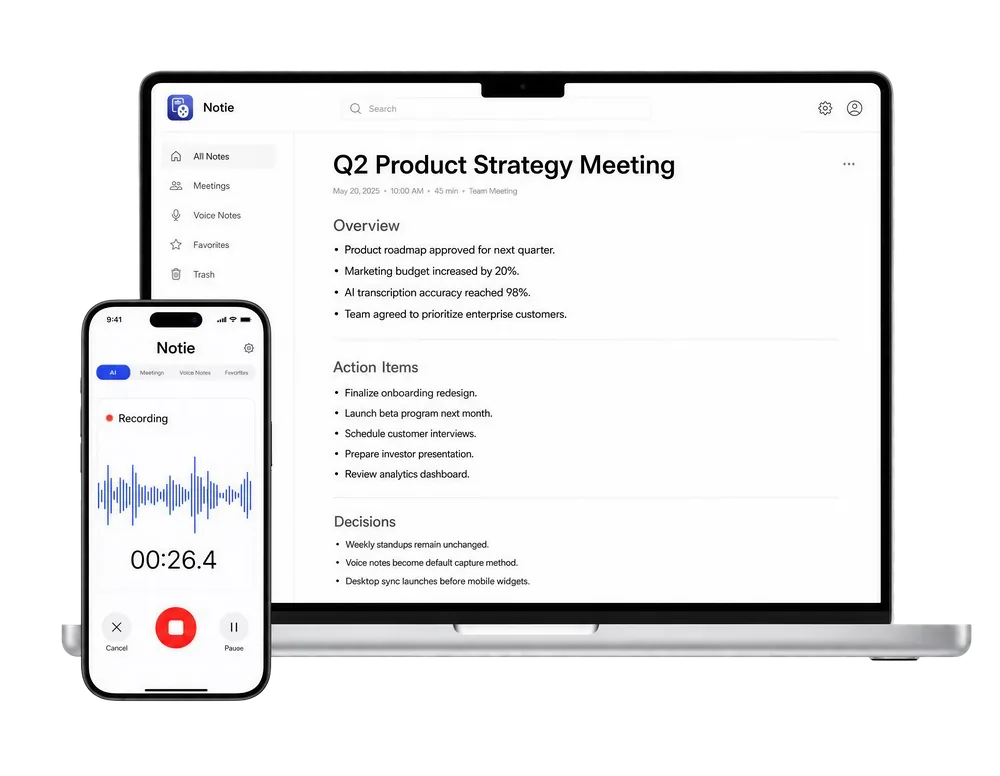
Every iPhone ships with Voice Memos, a simple recorder that has quietly become one of the most-used apps on the device — for lectures, reminders, songwriting ideas, interviews, and meetings caught on the fly. Android's equivalent recorder apps serve the same role. Most people, though, use maybe 10 percent of what these apps can do, and almost nobody uses the feature they need most: turning a recording into text automatically.
This guide covers how to get more out of iOS Voice Memos and Android's built-in recorder, the features people overlook, and the point where a basic voice memo app stops being enough — and a dedicated voice memo and transcription tool like Notie takes over.
Getting Started with iOS Voice Memos
- Open the Voice Memos app (preinstalled on every iPhone) and tap the red record button.
- Tap again to pause, and tap the stop square to finish and save the recording.
- Recordings sync automatically via iCloud if enabled, so they appear on your iPad and Mac too.
- Double-tap a recording's name to rename it — do this immediately, since "New Recording 47" is impossible to search later.
Hidden Features Most People Miss
- Trim and replace: tap Edit, then drag the trim handles to cut dead air from the start or end without leaving the app.
- Skip silence: enable this in playback settings so long pauses in a lecture or meeting recording fly by automatically.
- Enhance recording: a one-tap filter that reduces background noise and room echo after the fact.
- Resume recording: tap the record button again on a paused clip to keep appending instead of creating a new file.
- Organize into folders: create folders to separate work, personal, and creative recordings instead of one long scrolling list.
Voice Memos on Android
Android does not ship one universal app, but most phones include a Recorder app (Pixel's version adds on-device transcription for supported languages) or Samsung's Voice Recorder. Core behavior is similar: tap to record, tap to stop, and recordings save locally with basic trimming tools. If your phone's built-in app lacks transcription, a dedicated audio to text converter fills the gap.
Where Basic Voice Memo Apps Fall Short
Voice Memos and its Android equivalents are excellent at one job: recording sound reliably. They were never built for the job most people actually need afterward:
- No automatic transcription on most devices, meaning every important recording requires manual replaying and typing to turn into usable text.
- No speaker labels, so a recorded meeting with three people talking becomes one undifferentiated audio blob.
- No summaries, which means finding the one decision buried in a 40-minute recording means listening to the whole thing again.
- Limited search, since you can search file names but not what was actually said inside a recording.
Notie: the voice memo app that also does the listening for you
Notie records voice memos just like your phone's built-in app, but adds automatic transcription, speaker labels, and AI summaries with action items — plus live translation across 100+ languages. Free on iOS and Android.
Start for FreeVoice Memos vs. an AI-Powered Voice Memo App
| Feature | Built-in Voice Memos | Notie |
|---|---|---|
| Recording quality | Solid, reliable | Solid, reliable |
| Automatic transcription | No (manual only) | Yes, 100+ languages |
| Speaker labels | No | Yes |
| AI summaries and action items | No | Yes |
| Live translation | No | Yes |
| Background recording while using other apps | Limited | Yes |
When to Upgrade from Basic Voice Memos
If you use voice memos for a quick personal reminder now and then, the built-in app is genuinely fine — no reason to change anything. The upgrade becomes worthwhile the moment recordings start piling up faster than you can review them: recorded meetings, interviews, lecture notes, or any conversation where someone else needs the takeaways. At that point, voice-to-text with automatic summaries turns a growing pile of unreviewed audio into something you can actually act on.
A simple habit closes the gap either way: rename recordings the moment you make them, and transcribe anything you will need to reference later rather than trusting memory. For a deeper walkthrough of the transcription step itself, see our guide on how to transcribe audio to text.