Recording audio on a PC sounds trivial until you try it. Your microphone records fine, but the moment you want system audio — the sound your computer itself plays — Windows gets cagey. Add a meeting or a game commentary into the mix and suddenly you are comparing five different tools.
This guide covers how to record sounds on PC for every common scenario: quick voice memos, system audio, professional multi-track recording, and meetings — all with free tools, plus the fastest way to turn any recording into text.
Method 1: Windows Sound Recorder (Fastest for Voice)
Windows 11 ships with a Sound Recorder app that handles basic microphone capture with zero setup:
- Press the Windows key, type "Sound Recorder," and open the app.
- Select your microphone from the device picker in the bottom-left corner.
- Click the red record button, speak, then click stop.
- Right-click the recording in the list to rename, trim, or open its file location.
Recordings save as M4A by default. If another app needs WAV or MP3, run the file through an online audio converter.
Method 2: Record System Audio (What Your PC Plays)
Sound Recorder only captures the microphone. To record what your PC plays — streaming audio, app sounds, webinar playback — you have two options:
- Stereo Mix: an older Windows feature that routes output back as an input. Enable it under Settings > System > Sound > More sound settings > Recording tab. Not all sound drivers support it.
- OBS Studio (recommended): free, reliable, and driver-independent. Add a "Desktop Audio" source and OBS captures everything your PC plays, with your mic on a separate track if you want it.
Method 3: Audacity for Editable Recordings
Audacity is the free standard for anyone who wants to edit after recording — trim silences, cut mistakes, normalize volume, and export to MP3 or WAV. Choose your input device on the toolbar, hit record, and edit on the waveform. On supported systems, selecting the WASAPI loopback device also lets Audacity capture system audio directly.
Which Method Should You Use?
| Scenario | Best tool | Difficulty |
|---|---|---|
| Quick voice note | Windows Sound Recorder | Easy |
| System audio / streaming sound | OBS Studio | Medium |
| Podcast or edited voiceover | Audacity | Medium |
| Online meeting | Meeting app recording or Notie on your phone | Easy |
| Game + mic commentary | OBS Studio (multi-track) | Medium |
Recording Meetings and Calls on Your PC
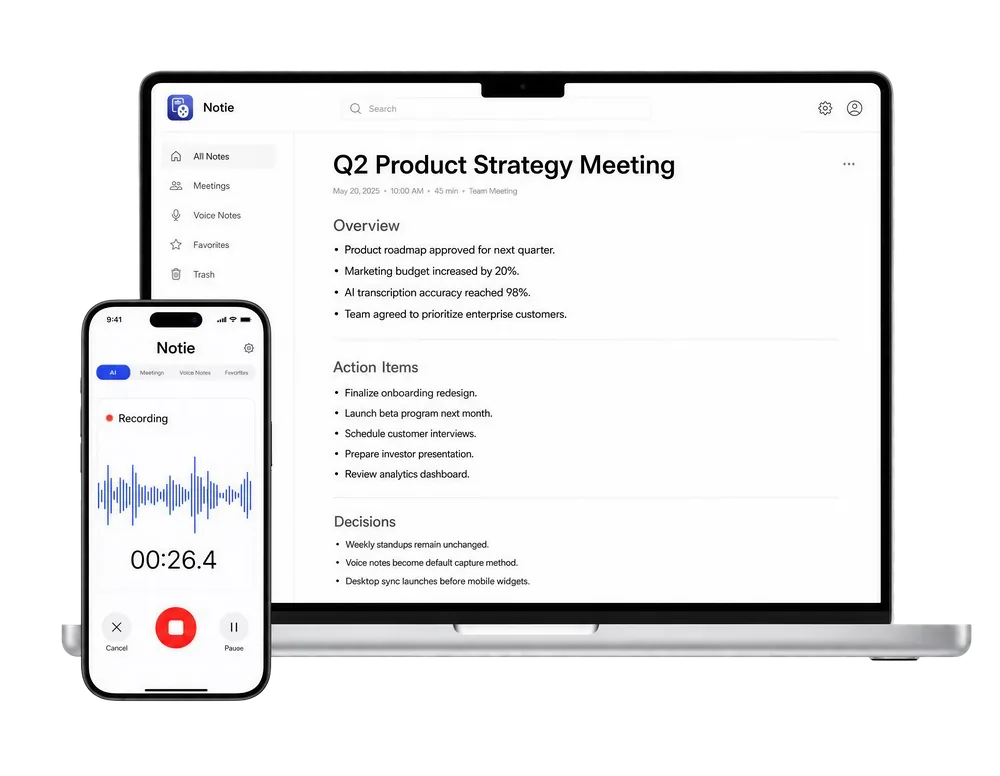
For Zoom, Teams, or Meet calls, the built-in recorder is the cleanest option when you are the host. When you are not — or when you also want notes, not just audio — a mobile AI note taker is often simpler than PC audio routing. Notie records the room or the call audio from your phone, transcribes it with AI transcription, and generates a summary with action items, sidestepping Windows audio configuration entirely.
Skip the audio settings — record with Notie
Notie turns any conversation into searchable text and clean summaries. Record on your phone, get an accurate transcript in minutes, and export wherever you work. Free to try on iOS and Android.
Start for FreeAfter Recording: Turn Audio into Text
A recording you cannot search is a recording you will never listen to again. Once you have your file, upload it to an audio to text converter to get a full transcript, or use an MP3 to text converter for exported music-format files. For the complete workflow — accuracy tips, speaker labels, and formatting — see our guide on how to transcribe audio to text.
Bottom line: Sound Recorder for quick voice capture, OBS for system audio, Audacity for editing — and AI transcription so every recording becomes something you can actually read, search, and share.