Every Zoom meeting produces two artifacts: the decisions everyone remembers differently, and the notes nobody finished. Recording solves both — but Zoom gates its recorder behind host permissions and plan tiers, which is why "how to record a Zoom meeting" is rarely a one-click answer.
This guide covers all the routes: built-in local and cloud recording, what to do when you are not the host, recording from your phone, and the step most people skip — turning the recording into a transcript and summary you will actually use.
Method 1: Zoom's Built-In Recording (Host or Permitted)
If you host the meeting or the host grants you permission, Zoom's native recorder is the cleanest option:
- Start or join the meeting from the desktop app (recording controls are limited in browsers).
- Click Record in the toolbar. On paid plans, choose "Record to this computer" (local) or "Record to the cloud."
- Announce the recording — Zoom notifies participants, but saying it out loud is good practice and legally safer.
- Use pause rather than stop for breaks, so you get one continuous file.
- End the meeting: local recordings convert to MP4/M4A on your machine; cloud recordings appear in your Zoom web portal with shareable links.
Local vs. Cloud Recording
| Local recording | Cloud recording | |
|---|---|---|
| Plan required | Free and paid plans | Paid plans |
| Where it saves | Your computer | Zoom's servers |
| Sharing | Manual file sharing | Link sharing built in |
| Transcript | Not included — transcribe separately | Basic transcript on eligible plans |
| Storage limits | Your disk space | Plan-based cloud quota |
Method 2: When You Are Not the Host
No record button? You have three legitimate options:
- Ask for permission. The host can grant recording rights in one click via Participants > More. This is the best option — use it first.
- Ask for the cloud recording link after the meeting if the host is already recording.
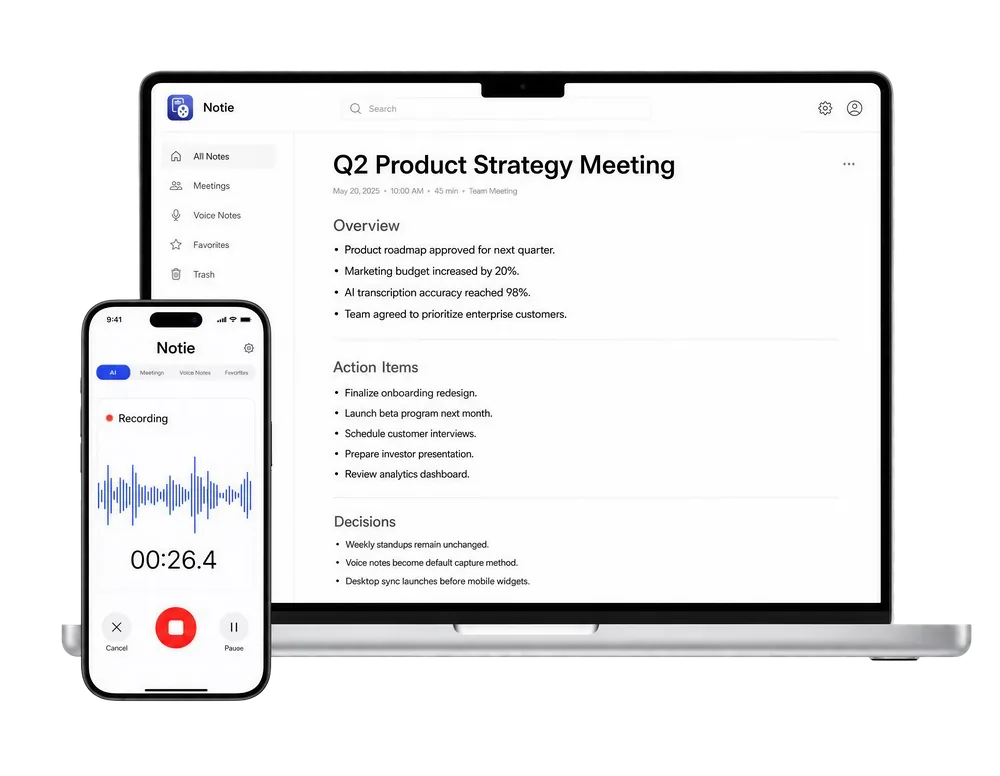
- Record on your own device. A phone-based recorder like Notie placed near your speaker captures the meeting audio and transcribes it — no host settings involved. Ethically and often legally, the same rule applies: tell participants you are recording.
A word on consent: several US states require all parties to agree to recording, and workplace policies can be stricter than the law. Announcing the recording at the start costs five seconds and removes the entire risk.
Method 3: Recording Zoom on Your Phone
The Zoom mobile app only supports cloud recording on paid plans — there is no local recording on phones. The practical workaround is running a recorder app alongside: Notie captures the audio, applies live transcription, and generates a summary with action items when the call ends, effectively giving mobile Zoom the notes feature it lacks.
Get notes, not just a video file
Notie records your meetings and delivers transcripts, summaries, and action items automatically — for Zoom calls, in-person meetings, and everything between. Try it free on iOS and Android.
Start for FreeAfter Recording: Make It Useful
An MP4 nobody rewatches helps nobody. Close the loop in three steps:
- Transcribe it. Upload the recording to a video transcript generator or extract the audio with an MP4 to MP3 converter first for smaller files.
- Summarize it. An AI meeting assistant condenses an hour into key points, decisions, and action items.
- Share the summary, link the recording. Teammates read two minutes of notes; the video stays available for disputes and details.
Recording the meeting is step one; capturing the meaning is the job. For the note-taking side of that workflow, see our guide on how to take meeting notes.