Google Meet has become the default video call for millions of teams, classrooms, and families, largely because it runs in any modern browser with nothing to install. Still, the first time someone sends you a meeting link, a ten-letter code, or a calendar invite with a phone number attached, it is not obvious which door you are supposed to walk through.
This guide covers every path: setting up a Google account, starting or scheduling a meeting from the web, your phone, or Google Calendar, and joining by link, code, or dial-in, plus a pre-meeting checklist and quick fixes for the camera and microphone problems that derail so many calls.
Step 1: Set Up a Google Account
You need a Google account to host a meeting, though guests can often join without one. If you already use Gmail, skip ahead. Otherwise:
- Go to the Google account sign-up page and choose "Create account."
- Enter your name, pick a Gmail address or use an existing email, and set a strong password.
- Verify a phone number or backup email so you can recover the account later.
- Sign in on every device you plan to use for meetings.
How to Set Up a Google Meet
There are three common ways to start a meeting, and each fits a different situation.
Start an Instant Meeting from the Web
- Visit meet.google.com and sign in to your Google account.
- Click "New meeting," then choose "Start an instant meeting."
- Allow camera and microphone access when your browser asks.
- Copy the meeting link from the pop-up and send it to your participants.
Schedule a Meeting in Google Calendar
- Open Google Calendar and click "Create," then "Event."
- Add a title, date, and time, then click "Add Google Meet video conferencing."
- Invite guests by email; the Meet link attaches to the invitation automatically.
- Click "Save," and Calendar sends the invites and reminders for you.
Scheduling through Calendar is the most reliable option for recurring team meetings, and it pairs well with sharing your Google Calendar so colleagues can see your availability before they book time.
Start a Meeting from Your Phone
- Install the Google Meet app for iOS or Android and sign in.
- Tap "New," then choose to start instantly, get a link to share, or schedule in Calendar.
- Share the meeting link through any messaging app.
How to Join a Google Meet
Join with a Link
This is the easiest route: click the link in your email, chat, or calendar invite, check your camera and microphone on the green-room preview screen, and hit "Join now." If you are outside the host's organization, you will see "Ask to join" instead, and the host admits you.
Join with a Meeting Code
- Go to meet.google.com or open the Google Meet mobile app.
- Type the meeting code, the string of letters like "abc-defg-hjk" from your invite, into the "Enter a code or link" box.
- Press "Join" and wait for the host to let you in if approval is required.
Join by Phone (Dial-In)
Many calendar invites include a phone number and PIN. Call the number, enter the PIN when prompted, and you join with audio only. It is a lifesaver when your internet is unstable, you are driving, or a company laptop blocks camera access entirely.
Which Join Method Should You Use?
| Join method | How it works | Best when |
|---|---|---|
| Meeting link | One click from the invite or chat | You have the invitation handy |
| Meeting code | Type the code at meet.google.com | You were given only the code |
| Google Calendar | Join button inside the event | It is a scheduled meeting |
| Phone dial-in | Call the number and enter the PIN | Weak internet or on the road |
Never Take Meeting Notes by Hand Again
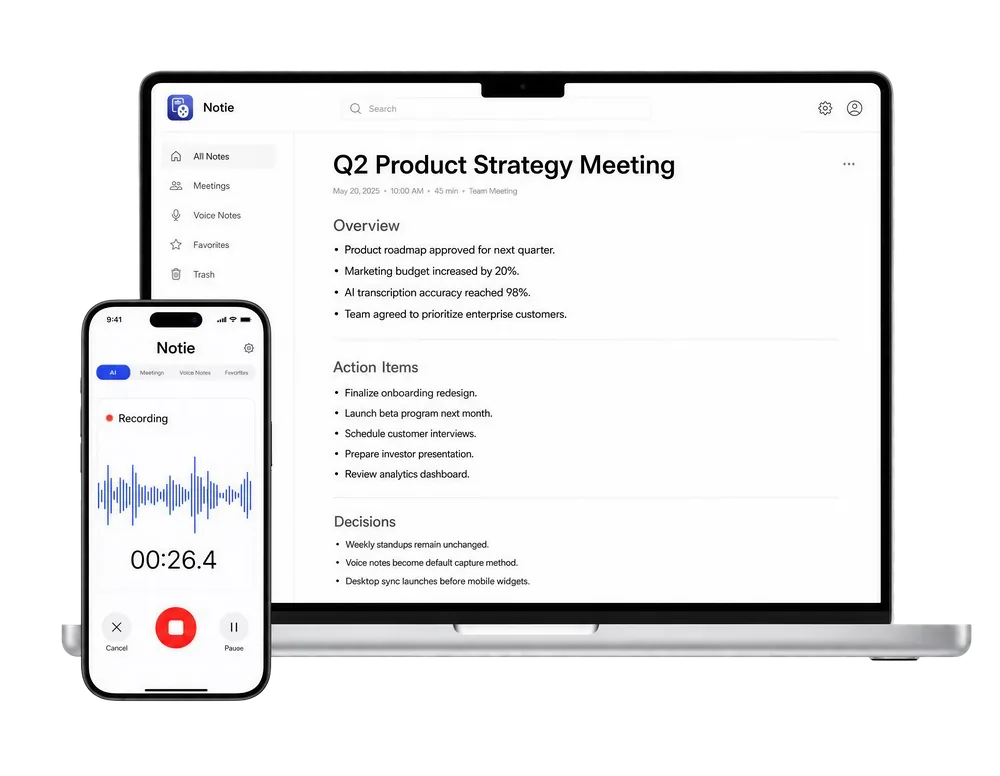
Once you are in the call, let Notie do the listening. Its AI meeting assistant records, transcribes, and summarizes your Google Meet conversations so every decision and action item is captured automatically. Download Notie free on iOS or Android.
Start for FreePre-Meeting Checklist
- Test your camera and microphone on the preview screen before joining.
- Wear headphones to prevent echo, especially on laptop calls.
- Close bandwidth-hungry apps and downloads for smoother video.
- Check your lighting: face a window or lamp rather than sitting in front of one.
- Join two or three minutes early for anything important, and stay muted when you are not speaking.
Troubleshooting Camera and Microphone Issues
Most Google Meet problems come down to permissions. If others cannot see or hear you, click the lock or settings icon in your browser's address bar, set camera and microphone access to "Allow," and refresh the tab. On mobile, check the Meet app's permissions in your phone's settings. Still stuck? Open Meet's own settings menu to confirm the right devices are selected, close any other app that might be holding the camera, and restart the browser. Company-managed devices sometimes block permissions altogether, in which case dialing in by phone keeps you in the conversation.
Capture the Meeting So Nobody Has to Take Notes
Getting into the meeting is only half the job; remembering what was said is the other half. Notie's AI meeting assistant records the conversation and turns it into structured notes with action items, while live transcription shows the words on screen in real time, which is invaluable for noisy rooms, accessibility, and non-native English speakers. After the call, an AI summarizer condenses the whole discussion into key points you can share in seconds. And if your team splits time across platforms, the routine barely changes; see our companion guide to joining a Zoom meeting.