Someone sends you a Zoom link five minutes before the call, and suddenly you are downloading software, hunting for a passcode, and apologizing for being late. Joining a Zoom meeting is genuinely simple once you know your options — and there are more of them than most people realize.
This guide walks through how to join a Zoom meeting every way possible: from a link, with a meeting ID, on desktop, on mobile, straight from your browser, by phone, and from a calendar invite. You will also find a pre-join checklist, quick fixes for audio and video problems, and a smarter way to capture what happens once you are in the room.
Every way to join a Zoom meeting
Join with a meeting link
- Click the invite link in your email, chat, or text message — it usually looks like zoom.us/j/ followed by a string of numbers.
- If the Zoom app is installed, allow your browser to open it. If not, download the app or choose Join from Your Browser.
- Enter your name if prompted, check your audio and video preview, and click Join.
Join with a meeting ID and passcode
- Open the Zoom app, or visit the Zoom website, and select Join a Meeting.
- Type the 9 to 11 digit meeting ID the host shared with you.
- Enter the passcode when prompted, then choose whether to join with audio and video on.
Join from the desktop app
Open Zoom on Windows or Mac and click Join — no sign-in is required to attend someone else's meeting. The desktop app remembers recent meeting IDs and gives you the full feature set, including screen sharing, reactions, and breakout rooms, which is why it is the best choice for meetings you attend regularly.
Join on the mobile app
Install Zoom from the App Store or Google Play, tap Join a Meeting, and enter the ID — again, no account needed. Mobile is perfect when you are away from your desk, though a headset makes a dramatic difference in how you sound to everyone else.
Join from your browser without installing anything
- Click the meeting link, then dismiss the prompt asking you to download or open the app.
- Select Join from Your Browser at the bottom of the page (the host must have this option enabled).
- Enter your name and the passcode if asked. Browser joining is ideal on locked-down work computers, though a few features may be limited.
Dial in by phone
Every Zoom invite includes local dial-in numbers. Call one, enter the meeting ID followed by the pound key, then the passcode. You get audio only, which makes this the fallback of choice when you are driving or your Wi-Fi is unreliable.
Join from a calendar invite
If the meeting lives in Google Calendar or Outlook, open the event and click the Zoom link inside it. This is the most reliable method for recurring meetings, because the link, meeting ID, passcode, and dial-in numbers all sit in one place. The flow is nearly identical on other platforms too — see our walkthrough on setting up and joining Google Meet if your team switches between the two.
Pre-join checklist
- Test your microphone and camera in Zoom's settings before the meeting starts, not during introductions.
- Close bandwidth-heavy apps, downloads, and streaming tabs.
- Set your display name properly — hosts admit "Galaxy S24" from waiting rooms more slowly than real names.
- Have the passcode handy in case the link alone does not get you in.
- Join two or three minutes early to clear app updates and waiting rooms.
Which join method fits your situation?
| Join method | Best situation |
|---|---|
| Meeting link | You have an invite and want the fastest entry |
| Meeting ID + passcode | The link is buried but you have the details |
| Desktop app | Regular meetings where you need screen sharing |
| Mobile app | Joining on the go |
| Browser (no install) | Work or public computers where you cannot install apps |
| Dial-in by phone | No internet or unreliable Wi-Fi |
| Calendar invite | Recurring meetings already on your schedule |
Join the meeting — let Notie take the notes
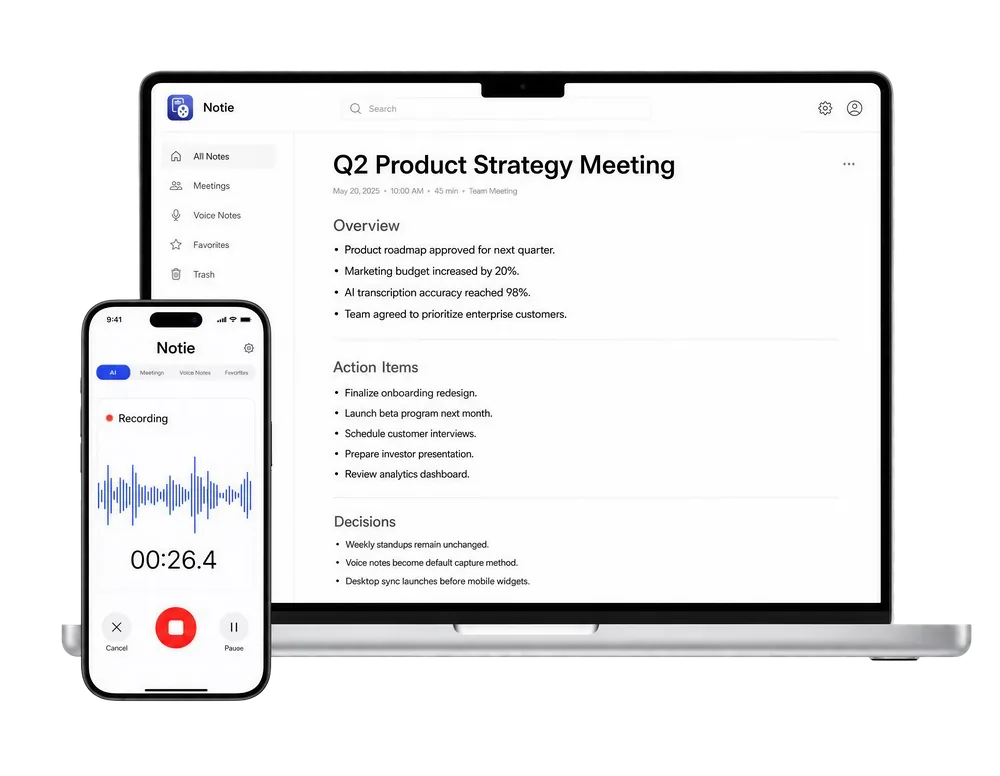
Notie's AI meeting assistant records and transcribes your Zoom calls, then delivers a structured summary with action items the moment you hang up. Download Notie on iOS or Android and stay fully present in every meeting instead of typing frantically.
Start for FreeFixing audio and video problems fast
- No one can hear you: check that you are unmuted, then click the arrow next to the mute button and confirm the correct microphone is selected.
- You cannot hear others: click Join Audio — it is easy to skip that prompt when entering — and check your speaker selection and system volume.
- Your camera shows black: another app may be holding the camera; close video apps, then stop and restart your video in Zoom.
- Echo or feedback: two devices in the same room are both on audio, or your mic is picking up your speakers. Mute one device or switch to headphones.
- Choppy connection: turn off your video temporarily or switch to the dial-in number for audio.
Waiting rooms and basic etiquette
Many hosts enable a waiting room, which means you will see a holding screen until they admit you — it is a security feature, not a snub, so just wait with your name displayed clearly. Once inside, the basics go a long way: stay muted when you are not speaking, keep your camera at eye level if it is on, and use the raise-hand feature in larger calls rather than talking over people.
Capture what happens after you join
Joining is the easy part; remembering what was decided is harder. Notie's AI meeting assistant records the conversation and produces a full transcript plus a summary with action items, so you can contribute instead of scribbling. If the host shares a cloud recording afterward, you can transcribe the video to text and condense it with an AI summarizer in minutes. And if you need the recording file itself, here is how to download Zoom recordings step by step.