A calendar you keep to yourself only helps you. The moment you share it, scheduling gets dramatically easier: no more email chains asking who is free on Thursday, no more double-booked rooms, and no more guessing whether a teammate is heads-down or on vacation. Google Calendar makes all of this possible, but the options are scattered across a few menus.
This guide shows you how to share Google Calendar step by step, explains what each permission level actually allows, covers sharing with people outside the Google ecosystem, and walks through fixes for the most common problems, so your calendar becomes a tool the whole team can rely on.
Before You Share: Which Calendar Are You Sharing?
One thing trips people up early: sharing an entire calendar is different from inviting someone to a single event. Adding a guest to an event shows them that one meeting only, while sharing a calendar exposes your whole schedule at whatever detail level you choose. Also note that your account can hold several calendars, a primary one plus any you create, and each is shared separately with its own permissions.
How to Share Google Calendar from a Desktop Browser
Full sharing controls live in the web version, so start at calendar.google.com on a computer.
- Open Google Calendar in your browser and find My calendars in the left sidebar.
- Hover over the calendar you want to share and click the three-dot menu.
- Choose Settings and sharing.
- Scroll to Share with specific people or groups and click Add people.
- Enter the person's email address, pick a permission level, and send the invitation.
The recipient gets an email with a link to add your calendar. Until they click it, the calendar will not appear in their own list, which explains a surprising number of "sharing did not work" complaints.
What You Can Do on Mobile
The Google Calendar mobile app is built for viewing and creating events, not for managing sharing, so your options there are limited. You can see calendars that others have shared with you and control which ones are visible, but to add people or change permission levels you will generally need the desktop site. In a pinch, open calendar.google.com in your phone's browser and request the desktop version of the page.
Google Calendar Permission Levels Explained
Choosing the right permission level matters more than most people realize, because the top tier lets someone re-share your calendar to anyone they like. Here is what each option really means:
| Permission level | What they can do | Best for |
|---|---|---|
| See only free/busy (hide details) | View when you are busy, with no event names or details | External contacts and cross-company scheduling |
| See all event details | View titles, times, locations, and descriptions | Teammates who need context on your day |
| Make changes to events | Add, edit, and delete events on the calendar | Close collaborators and shared project calendars |
| Make changes and manage sharing | Full control, including sharing the calendar with others | Assistants and calendar administrators |
A good default: give colleagues see all event details, reserve the two edit levels for people who genuinely manage your schedule, and use free/busy for anyone outside your organization.
Sharing with People Who Do Not Use Google Calendar
For someone on Outlook, Apple Calendar, or no calendar app at all, you have two options in the same Settings and sharing page. You can make the calendar public and send the shareable link, or copy the ICS address so their calendar app can subscribe to it and stay updated automatically. Remember that a public calendar can be seen by anyone who has the link, so keep sensitive details out of event titles before going this route.
Creating a Shared Team Calendar
Rather than exposing personal calendars, many teams create a dedicated calendar for launches, time off, and recurring meetings. It keeps personal appointments private while giving everyone one shared source of truth.
- In the left sidebar, click the plus icon next to Other calendars and choose Create new calendar.
- Give it a clear name and description, then click Create calendar.
- Open its Settings and sharing page and add teammates with the permission each person needs.
- Ask everyone to accept the invitation so the calendar shows up in their sidebar.
Make Shared Calendars Lead to Shared Outcomes
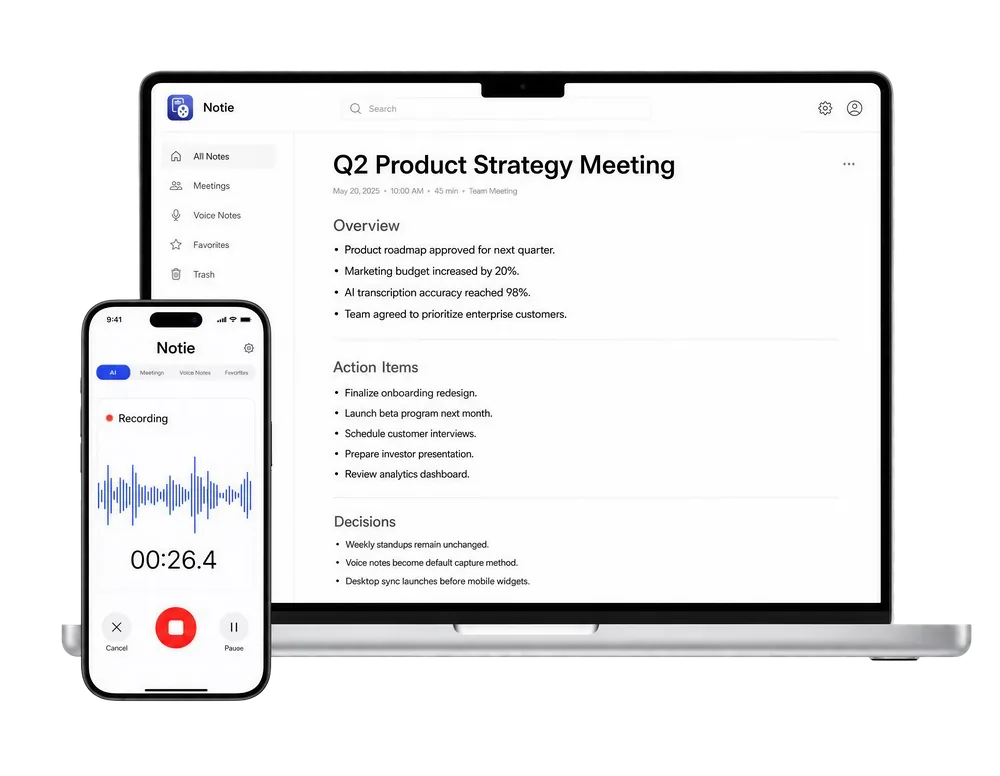
A shared calendar gets everyone into the room, but what happens in the room still needs to be captured. Notie records your meetings, transcribes them with AI, and turns the conversation into clear summaries and action items the whole team can act on.
Start for FreeTroubleshooting Common Sharing Problems
- Invitation never arrived: ask the recipient to check spam, and confirm you typed the email address correctly.
- Calendar not showing up: the recipient must click the link in the invitation email before it appears in their list.
- Cannot change permissions: only someone with make changes and manage sharing access can edit who sees the calendar.
- Options are grayed out: on company Workspace accounts, admins can restrict external sharing, so check with IT.
- Shared calendar looks empty: the owner may have granted only free/busy access, which hides all event details by design.
Calendar Hygiene That Makes Meetings Better
Sharing only pays off when the calendar is worth reading. Use clear event titles, attach agendas to invites, and block focus time so teammates can plan around it. Put the right video link in every event, whether the call starts on Google Meet or you need to join a Zoom meeting, so nobody scrambles for the link at the top of the hour.
Close the Loop After the Meeting
A shared calendar gets people to the meeting; shared notes are what make the meeting matter. Notie records the conversation on your phone and delivers AI summaries with the decisions and action items attached, so the follow-up is written before the next event on the calendar begins. And when someone sends over a sprawling agenda or a wall of minutes, a free AI summarizer condenses it into the few lines you actually need to read.
Final Thoughts
Learning how to share Google Calendar takes five minutes: open Settings and sharing on desktop, add people with the least permission that still works, and use public links or ICS feeds for anyone outside Google. Pair a well-shared calendar with a note taker like Notie, and your team gets the full cycle, from finding a time to remembering what was decided.