Text baked into a video, whether it is old subtitles, a channel watermark, a date stamp from a camera, or a lower-third title left over from a previous edit, can ruin footage you otherwise want to reuse. The good news is that removing it is usually possible; the honest news is that how hard it is depends entirely on what kind of text you are dealing with.
This guide explains how to delete text in video the right way: first diagnose whether the text is a separate subtitle track or burned into the pixels, then pick from five removal methods that range from a one-click toggle to AI-powered inpainting, and finally set up a workflow where this problem never comes back.
First, Figure Out What Kind of Text You Have
Everything depends on one distinction. Soft subtitles are a separate text track that the player draws on top of the video, and they can simply be switched off or stripped out with no quality loss. Hardcoded, or burned-in, text is part of the image itself, present in every pixel of every frame, and removing it means altering the picture. A quick test: if you can toggle the text on and off in a media player, it is soft; if it shows up in every player and in screenshots, it is burned in.
| Type of text | How to recognize it | Removal approach |
|---|---|---|
| Soft subtitle track | Can be toggled on and off in the player | Disable or strip the track, no quality loss |
| Burned-in subtitles or captions | Always visible, in every player and screenshot | Crop, blur, or AI inpainting |
| Watermarks and logos | Static overlay, usually parked in a corner | Crop, blur, or AI removal, rights permitting |
| Titles from your own edit | You still have the original project file | Delete the text layer and re-export |
One rule before any method: only remove text from videos you own or have explicit permission to edit. Stripping someone else's watermark or credits is a copyright problem, not an editing trick.
Before You Start: A Quick Checklist
- Confirm whether the text toggles off in a player (soft) or persists everywhere (burned in)
- Check whether you still have the original project file or a clean master copy
- Verify you have the rights to edit and republish the video
- Work on a copy of the file, never on the only version you have
Method 1: Turn Off or Strip a Soft Subtitle Track
If the text is a soft track, you barely have a problem. In most players you can disable subtitles from the playback or audio-and-subtitles menu. To remove the track permanently, open the file in a video editor or converter that lists its streams, deselect or delete the subtitle track, and export. Because the video stream itself is untouched, there is no quality loss. Re-saving the file with an online video converter into a format without the embedded track accomplishes the same thing without desktop software.
Method 2: Crop the Frame
When burned-in text sits near an edge, which is where bottom-of-frame subtitles and corner watermarks live, cropping cuts it out entirely. The trade-off is that you lose part of the picture and change the aspect ratio, which can matter on platforms expecting standard dimensions. Cropping works best when the text sits over expendable space like sky, letterboxing bars, or a plain background.
Method 3: Blur or Cover the Text
Every serious editor can place a blur, pixelation, or a solid shape over a region of the frame for the duration of a clip. This does not make the text vanish, but it makes it unreadable, which is often the actual goal, for example hiding a phone number, a street address, or an outdated price in old footage. If the camera moves, track the blur to the text position so it stays covered throughout the shot.
Method 4: AI Inpainting and Watermark Removal
Modern editors and dedicated apps increasingly include AI-powered object removal, often called inpainting, that reconstructs the pixels behind the text. Results range from seamless to smudgy depending on how busy the background is and how much the shot moves: static text over a simple background usually removes cleanly, while text over faces, patterns, or fast motion tends to leave visible artifacts. Capabilities in this space change quickly, so test any tool on a short clip before committing an entire video to it.
Method 5: Go Back to the Original Project
If the text came from your own edit, the cleanest fix is not removal at all. Reopen the original project file, delete the title or caption layer, and re-export the video. Two minutes of work, zero quality loss, and a standing reminder to always archive both your project files and a clean master copy of anything you publish.
Skip the Re-Edit: Pull the Content Out Instead
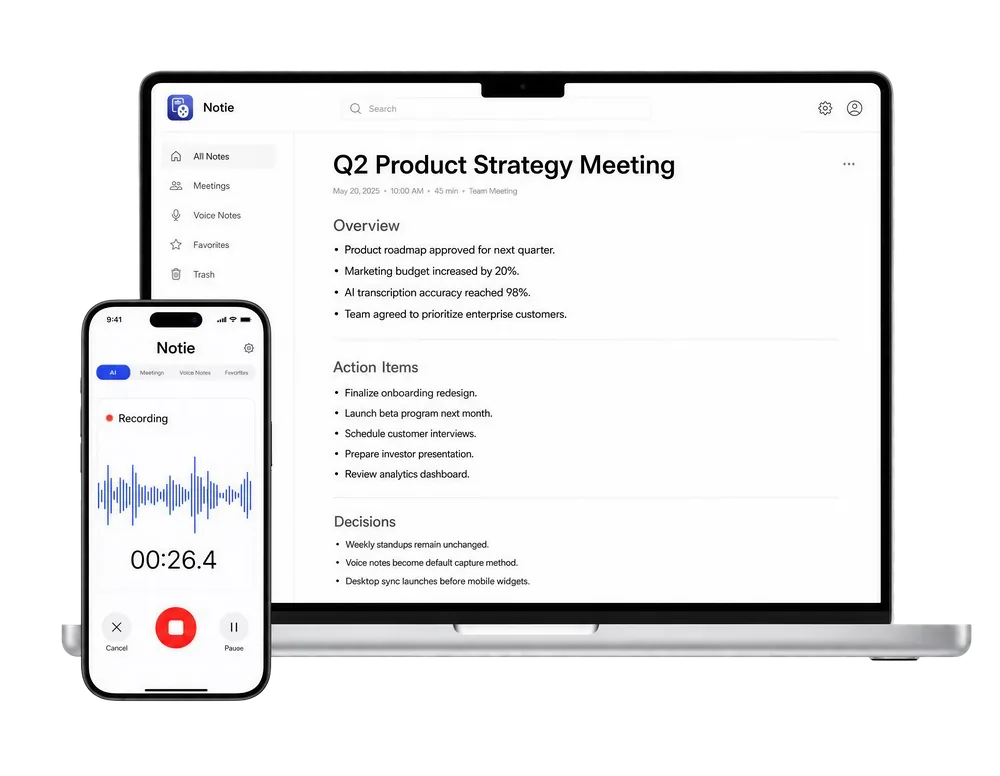
Sometimes you do not need the video cleaned; you need what was said in it. Notie transcribes recorded videos and meetings right on your phone, turning the speech into organized notes and summaries, so the information outlives the footage without any editing at all.
Start for FreeThe Better Way: Add Text You Can Always Remove
Most text-removal headaches trace back to one mistake: burning subtitles into the master file. The future-proof workflow is to keep the video clean and generate a separate caption file instead. A free AI subtitles generator creates timed SRT captions from the audio automatically, and because they live in their own file you can edit, translate, or delete them at any time without touching the video. Upload captions alongside the video on platforms that support them, and burn them in only for final exports where you truly must.
Two finishing touches complete the workflow. Re-encoding to crop or blur often inflates file size, so run the finished video through a video compressor to shrink it for sharing without a visible quality hit. And if the goal was never really the video itself, remember you can extract the content from a video as text, which is where a tool like Notie shines, and work with the words instead of the pixels.
Final Thoughts
How to delete text in video comes down to diagnosis first: text you can toggle is a soft track you can strip losslessly, while burned-in text calls for cropping, blurring, AI inpainting, or a return to the original project. Respect other creators' rights, keep clean masters of your own work, and prefer editable subtitle files over hardcoded captions. Do that, and the next time text needs to go, it takes seconds, and Notie can capture the words that matter no matter what is printed on the screen.