YouTube hosts an astonishing amount of useful knowledge — university lectures, expert interviews, conference talks, step-by-step tutorials — but video is a slow format to mine. Watching a 90-minute talk to find one statistic burns an afternoon you probably do not have.
Fortunately, there are several legitimate ways to extract content from a YouTube video: full transcripts, AI summaries, key quotes with timestamps, audio for personal study, and structured notes. This guide covers each method, when to use it, and how to stay on the right side of copyright while you work.
Method 1: Get the transcript
Use YouTube's built-in transcript feature
- Open the video on desktop and expand the description, or click the three-dot menu below the player.
- Select Show transcript — a panel appears alongside the video with everything said.
- Toggle timestamps on or off with the three-dot menu inside the panel, then select and copy the sections you need.
The catch: auto-generated captions often lack punctuation, mangle names and technical terms, and never label speakers. For a quick skim they are fine; for anything you plan to quote or publish, you will want something cleaner.
Use a dedicated YouTube transcription tool
For readable, punctuated text, paste the video URL into a YouTube transcription tool and export the result. If your source lives outside YouTube — a course platform, a webinar replay, your own footage — a video transcript generator does the same job for uploaded files. Our full guide on how to transcribe video to text compares the options in depth.
Method 2: Summarize instead of watching
When you need the gist rather than every word, a YouTube video summarizer condenses an hour of talking into key points in seconds. It is perfect for triage: summarize five candidate videos, then invest real watch time only in the one that actually covers your topic. Summaries also make excellent skeletons for study notes — expand the points that matter and discard the rest.
Extract the ideas, not just the words
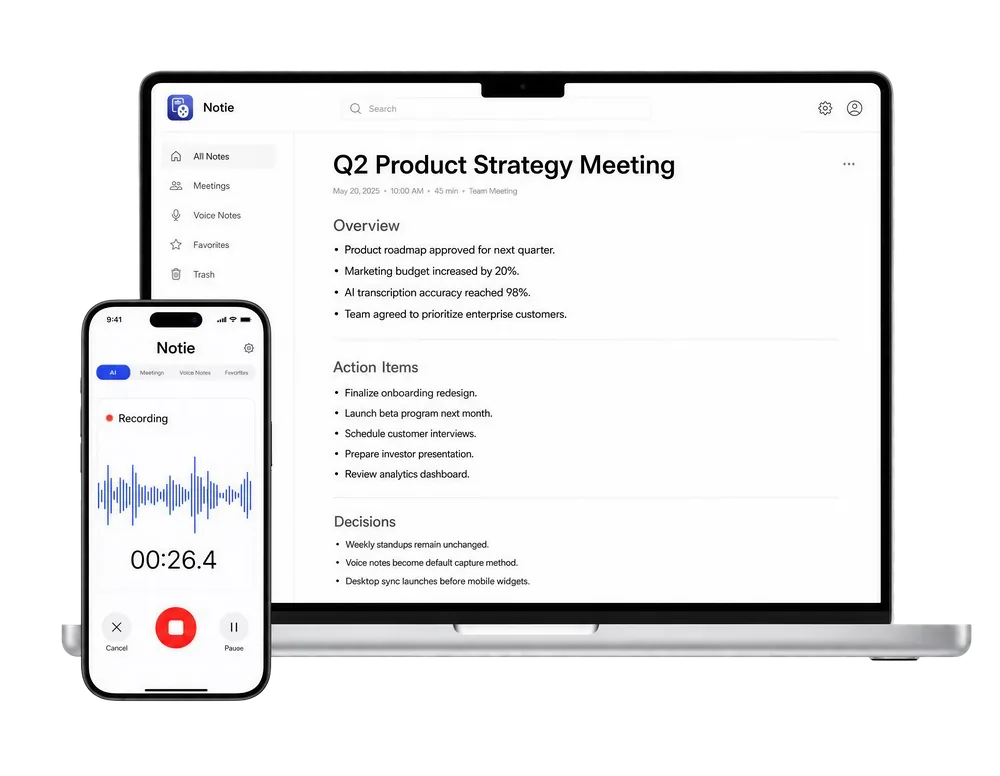
Notie turns long videos, lectures, and meetings into structured notes with key points and action items — on the web or right on your phone. Try Notie on iOS or Android and get the insight without sitting through the runtime.
Start for FreeMethod 3: Pull key quotes and timestamps
For research and citation, exact wording plus a timestamp beats a paraphrase. The transcript panel makes this fast, because clicking any line jumps the player to that exact moment:
- Copy the quote from the transcript, then play that moment to verify the words against the audio.
- Record the timestamp (for example, 14:32) so you can cite or revisit the exact moment later.
- Use YouTube's share button with the "start at" box checked to create a link that opens right at the quote.
Method 4: Extract audio for personal study
Sometimes listening beats watching — reviewing a lecture on a run or a commute, for instance. Where you have the rights to the file — your own videos, content the creator has licensed for download, or offline viewing through YouTube's own Premium feature — audio is the most portable format. If you have a legitimate copy of a video file, an MP4 to MP3 converter strips out the audio track in one step.
Method 5: Take AI notes while you watch
For dense material like lecture series or technical deep dives, organized notes beat raw transcripts. Notie records or imports the audio, transcribes it, and generates structured notes automatically — headings, key points, and action items included. You can then ask its AI chat follow-up questions about the content, which turns a pile of watched videos into a searchable study library instead of a vague memory.
Respect copyright and YouTube's terms
Extracting content for reference is not the same as owning it. A few ground rules keep you safe and fair:
- Downloading videos you do not own generally violates YouTube's Terms of Service unless YouTube provides the feature (such as Premium offline viewing) or the creator explicitly permits it.
- Fair use in the US may cover short quotes for commentary, criticism, or education — but it is a legal defense, not blanket permission. When in doubt, ask the creator.
- Always credit and link the source video when you quote or reference it.
- Re-uploading or repurposing someone else's full video is off-limits. Repurposing your own catalog, however, is entirely fair game.
Match the method to your goal
| Extraction goal | Best method |
|---|---|
| Full text of everything said | Transcript panel or a YouTube transcription tool |
| Quick gist before committing watch time | YouTube video summarizer |
| Quotes for an article or paper | Transcript with verified timestamps |
| Hands-free review of a lecture | Audio extraction, where permitted |
| Organized, searchable study notes | AI notes with Notie |
Three use cases where extraction shines
- Research: pull data points and expert quotes from interviews with citable timestamps instead of rewatching hours of footage.
- Study notes: turn a lecture playlist into summaries and key points you can actually review before an exam.
- Repurposing your own videos: transcripts of your own channel become blog posts, newsletters, and social captions with minimal extra writing.
The bottom line
You rarely need the video file itself — you need what is inside it. Start with the transcript for accuracy, use a summarizer for speed, capture quotes with timestamps for credibility, and lean on AI notes when the material is dense. Handle it all with respect for the creators who made the content worth extracting in the first place.