Can you record on YouTube TV? Absolutely — and it's one of the service's best features. Every YouTube TV base plan includes an unlimited cloud DVR at no extra cost, meaning you can record as many shows, movies, and games as you want simultaneously, with recordings stored for nine months.
But "unlimited DVR" works differently from the cable boxes many of us grew up with. There's no record button you press mid-show, no storage meter, and no way to record just one episode of a series. Instead, YouTube TV records everything through its Library system — and once you understand how it thinks, it's genuinely easier than traditional DVR.
This guide covers how to record on every device, how playback and ad-skipping actually work, the quirks that trip people up, and what to do when a recording doesn't show up where you expect it.
How YouTube TV's Cloud DVR Actually Works
When you "record" on YouTube TV, you're not capturing a live stream to storage. You're adding a show, movie, team, or event to your Library. From that moment, YouTube TV automatically saves every airing of that program across all channels in your plan — past-tense scheduling included, since anything currently airing gets captured from the start of the broadcast in most cases. Key rules to know:
- Recordings are unlimited. There is no storage cap and no limit on simultaneous recordings.
- Everything saves for 9 months, then expires automatically.
- You record series, not episodes. Adding a show to your Library records all new (and often re-aired) episodes.
- Recordings follow you. Your DVR library works on phone, tablet, smart TV, and web — anywhere you're signed in.
- Ad skipping works on your recordings, though some on-demand versions may substitute with unskippable ads (more on that below).
How to Record on YouTube TV (Every Device)
On the Web (tv.youtube.com)
- Search for the show, movie, sports team, or event you want to record.
- Click the title to open its details page.
- Click the + (Add to Library) button.
- The icon changes to a checkmark — every upcoming airing will now be recorded.
On iPhone, iPad, and Android
- Open the YouTube TV app and tap the Search icon.
- Type the program name and select it from results.
- Tap Add to Library (the plus icon).
- To record something currently airing, open it from the Live tab, tap the screen, and tap the + button on the player.
On Smart TVs, Roku, Fire TV, and Apple TV
- Navigate to the program via Search or the Live guide.
- Select the show to open its page.
- Choose Add to Library with your remote.
Recording Sports: The Team Trick
Sports fans get YouTube TV's most underrated feature: you can add an entire team to your Library. Search for the team, add it, and every televised game — regardless of channel — records automatically. You can even enable spoiler protection so scores stay hidden until you watch. Leagues and specific events (like a golf major or the Olympics) can be added the same way.
Turn What You Watch into Notes You Keep
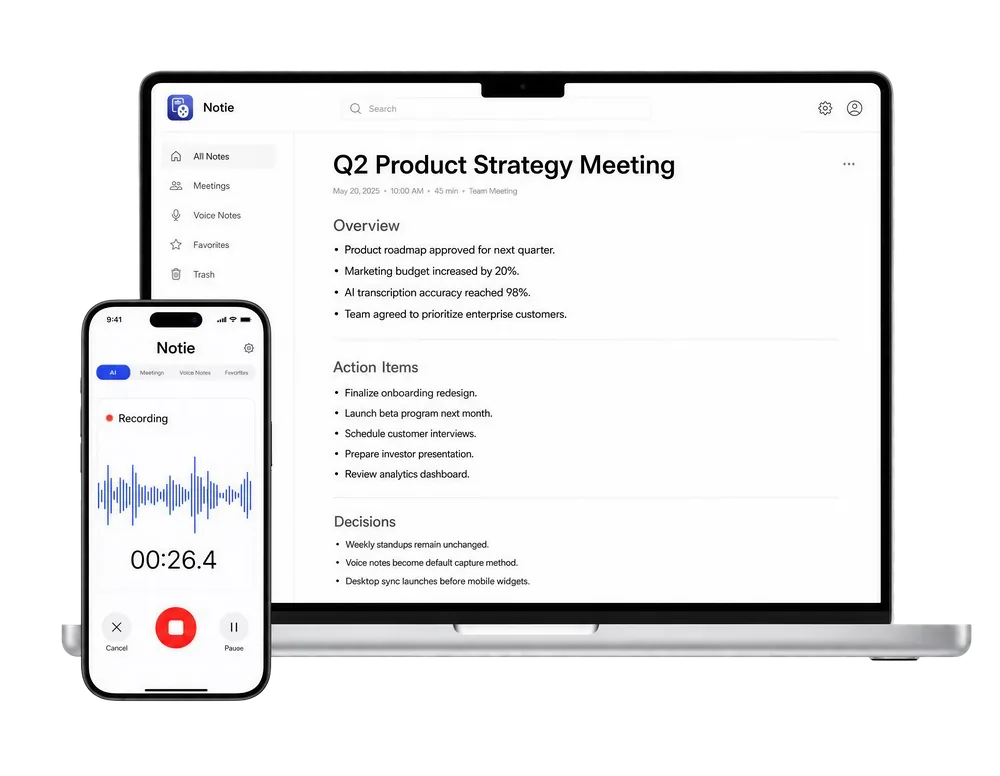
Recording a documentary, webinar, or game analysis to learn from it? Notie transcribes any audio around you and turns it into organized, searchable notes with AI summaries — perfect for capturing insights from anything you watch. Get Notie free on iOS and Android.
Start for FreeWatching and Managing Your Recordings
Everything you record lives in the Library tab. Recordings are grouped by show, with the newest episodes first, and a New in your Library shelf surfaces fresh recordings. To watch, just select an episode and press play — you can fast-forward through commercials on true DVR recordings.
- To stop recording a series: Open the show's page and tap the checkmark to remove it from your Library. Existing recordings are deleted, so screenshot or note anything you need first.
- To find a specific episode: Use search — it looks across your Library and upcoming airings simultaneously.
- To check what's scheduled: The show page lists upcoming airings that will be captured.
- Household sharing: Each of the up to 6 household members gets their own private Library and recordings.
DVR Recording vs. On-Demand: Why Ads Sometimes Won't Skip
Here's the quirk that generates the most complaints: sometimes YouTube TV plays an on-demand version of an episode instead of your recording, and on-demand versions include unskippable ads. This happens when a network makes the episode available on demand and your recording defaults to that copy. Look for a Recorded label or choose the recorded version from the episode's options when both exist. It's worth checking before you settle in, especially for network prime-time shows.
YouTube TV DVR vs. Traditional Cable DVR
| Feature | YouTube TV Cloud DVR | Typical Cable DVR |
|---|---|---|
| Storage | Unlimited | 50–500 hours |
| Extra monthly fee | Included in base plan | $5–$15/month + box rental |
| Simultaneous recordings | Unlimited | 2–6 tuners |
| Recording lifespan | 9 months | Until storage fills |
| Watch anywhere | Any signed-in device | Usually home TV only |
| Single-episode recording | No — series only | Yes |
| Ad skipping | Yes on recordings; no on some on-demand | Yes |
Common Recording Problems (and Fixes)
- A recording is missing: Check whether the airing was on a channel outside your plan, or whether the 9-month window expired.
- Only part of a game recorded: Live events that run long can get cut; YouTube TV usually pads sports, but adding the following program is a safe workaround.
- Can't fast-forward: You're watching the on-demand copy — switch to the recorded version if available.
- Library full of shows you don't watch: Unlimited storage means clutter is the real enemy; prune your Library every month or two.
Beyond the DVR: Capturing Information from What You Watch
A DVR saves the video, but if you watch content to learn — courses, financial news, coaching breakdowns, conference streams — you often need the substance in text form. You can't export video from YouTube TV, but you can capture the knowledge. Tools like a video-to-text converter turn recorded lectures you own into transcripts, an AI summarizer condenses long material into key points, and a video transcript generator makes any of your own recordings searchable. For live sessions, Notie can transcribe in real time on your phone while you watch, so the takeaways are organized before the credits roll.
Between unlimited recordings and smart capture tools, you'll never lose a show — or an insight — again.