Whether the price hikes finally got you, football season ended, or you're just trimming subscriptions, canceling YouTube TV is refreshingly painless compared to calling a cable company. There's no retention phone call, no return-the-box errand — just a few taps. But there are details worth knowing before you hit the button: what happens to your DVR library, whether you'll keep access until the billing date, and whether pausing your membership is the smarter move.
One genuine trap exists: if you subscribed through Apple, canceling on the YouTube TV website won't work — you have to cancel through your Apple subscriptions. We'll cover that path too.
Here's the complete process for web, iPhone, and Android, plus what actually happens to your account afterward.
Before You Cancel: Know These Five Things
- You keep access until the end of your billing period. Canceling stops future charges; it doesn't cut you off immediately.
- Your DVR library survives for a while. Recordings stay attached to your account and resume if you rejoin before they expire (recordings last 9 months from air date).
- Add-ons cancel with the base plan. Networks and premium add-ons like Max or NFL Sunday Ticket (a season purchase with its own terms) are affected — review any season-long commitments first.
- Pausing is an option. You can pause your membership for 4 weeks to 6 months instead; billing stops while paused and your library is preserved.
- Free trials must be canceled before they convert. Cancel any time during the trial and you keep access until the trial's end date without being charged.
How to Cancel YouTube TV on the Web
- Go to tv.youtube.com and sign in with the account that pays for the subscription.
- Click your profile photo in the top right and choose Settings.
- Select Membership in the left menu.
- Next to your plan, click Manage.
- Choose Cancel membership (or Pause membership if you want a break instead).
- Select a reason when prompted, confirm, and look for the confirmation email.
How to Cancel on iPhone and iPad
The path depends on how you originally subscribed:
If You Subscribed Directly with YouTube
- Open the YouTube TV app (or Safari to tv.youtube.com).
- Tap your profile photo, then Settings > Membership.
- Tap Manage, then Cancel membership, and confirm.
If You Subscribed Through Apple
- Open Settings on your iPhone and tap your name at the top.
- Tap Subscriptions.
- Select YouTube TV in the list.
- Tap Cancel Subscription and confirm.
If YouTube TV doesn't appear in your Apple subscriptions, you're billed directly by Google — use the first method or the website.
How to Cancel on Android
- Open the YouTube TV app and tap your profile photo.
- Go to Settings > Membership.
- Tap Manage next to your plan.
- Tap Cancel membership, pick a reason, and confirm.
Keep the Knowledge, Cut the Bill
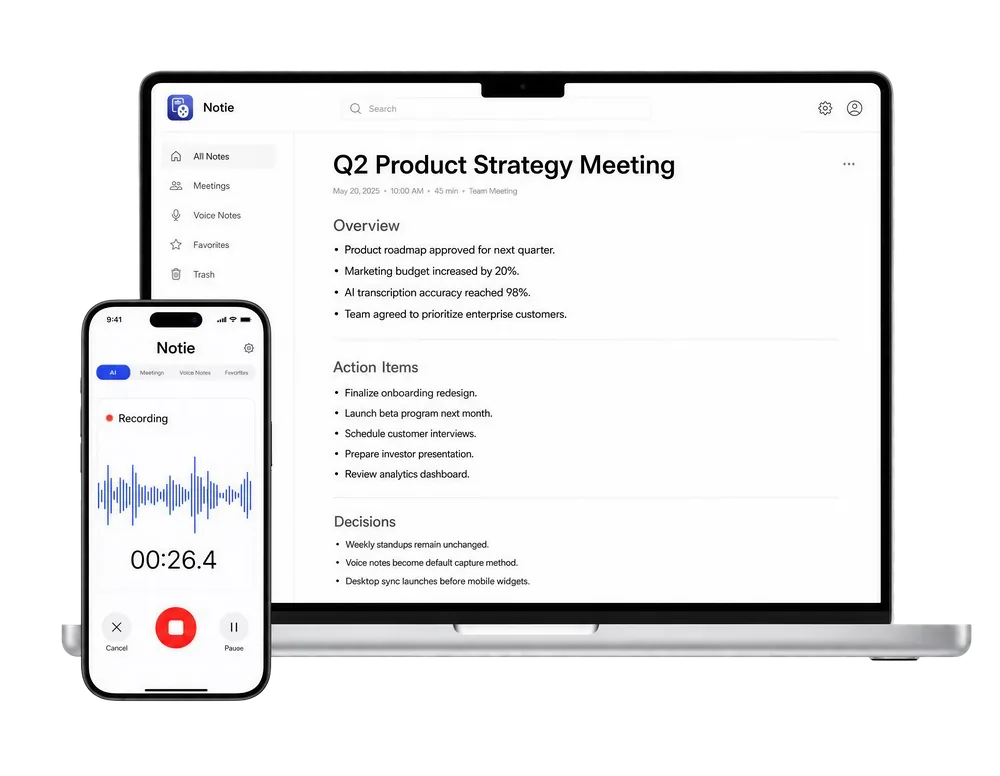
Canceling subscriptions to focus on what matters? Notie helps you capture and remember the important stuff — meetings, lectures, ideas — with AI transcription and summaries on your phone. Start free on iOS and Android.
Start for FreeCancel vs. Pause: Which Should You Choose?
| Cancel | Pause | |
|---|---|---|
| Billing | Stops after current period | Stops during pause (4 weeks–6 months) |
| Access | Until end of billing period | None until resume date |
| DVR recordings | Kept until natural expiration; restored if you rejoin | Fully preserved |
| Locked-in pricing | May lose grandfathered rates | Typically preserved |
| Best for | Cord-cutting for good, switching services | Off-season breaks, travel, budgeting months |
The pause option is the underrated move for sports fans: pause after your season ends, set the resume date for opening week, and skip months of charges without losing your library or setup. If you're on an older, cheaper grandfathered rate, pausing also avoids the risk of losing it.
What Happens After You Cancel
- Immediate confirmation: You'll get an email confirming the cancellation and your final access date.
- Access continues through the end of the period you've paid for — watch and record right up to the last day.
- Your Library persists: Sign back in later and your recordings (those still within their 9-month window) and preferences return.
- Family members lose access when the billing period ends — give your household a heads-up.
- Rejoining is instant: Resubscribe anytime at the then-current price; note that promotional or legacy pricing generally won't return.
Before Your Access Ends: Save What Matters
YouTube TV offers no way to export recordings, so anything in your DVR is gone for good once it expires. If your library includes informational content you rely on — recorded courses, cooking techniques, financial segments — capture the substance before the lights go out. Take notes the smart way: Notie can transcribe audio live while you watch and turn it into organized AI summaries, and for videos you own or that live on regular YouTube, a YouTube video summarizer or transcription tool preserves the content as searchable text.
Troubleshooting Cancellation Problems
- No Cancel button in Settings? You're signed into the wrong Google account, or you're a family member rather than the family manager — only the paying account can cancel.
- Canceled but still charged? Check whether the charge is from Apple (cancel via iOS Subscriptions) or covers the final pre-cancellation period. Receipts in your email pin this down quickly.
- Canceling a free trial: Do it any time before the trial end date; access continues through the trial and no charge lands.
- Want a refund? YouTube TV generally doesn't prorate partial months, but billing support can review recent accidental charges.
That's the whole process — five minutes, no phone tree. And if you resubscribe when the season starts again, everything will be waiting where you left it. For getting more out of the service while you still have it, see our guide on how to record on YouTube TV.