You found the perfect 45-second moment in a YouTube video — a quote for a presentation, a tutorial step you want offline, or a highlight you want to reference later. Now you want to save it. The good news: there are several legitimate ways to download a YouTube clip, from YouTube's own official features to screen recording and third-party workflows.
The catch is that not every method you'll find online is allowed, and some downloader websites are riddled with ads and malware. This guide walks through the safe, practical options in order — starting with what YouTube officially supports — and explains when each one makes sense.
We'll also cover a step most guides skip: what to do with the clip afterward. Often the fastest way to "save" a video moment isn't the video file at all — it's the transcript or summary, which you can get with a video transcription tool in less time than a download takes.
First, Understand What a "YouTube Clip" Actually Is
YouTube has an official feature literally called Clips. It lets you select a 5–60 second segment of an eligible video and share it as a link. The clip plays in a loop on YouTube, but — importantly — the Clips feature does not create a downloadable file. It creates a shareable URL that points back to the original video. So when people ask how to download a YouTube clip, they usually mean one of two things:
- Saving an official YouTube Clip (a youtube.com/clip link) for offline viewing.
- Extracting a segment of any YouTube video as a video file on their device.
The methods below cover both scenarios, on desktop and mobile.
Method 1: Create and Share an Official YouTube Clip
If your goal is simply to capture and share a specific moment, the built-in Clips feature is the fastest legal route and requires no downloads at all.
- Open the video on YouTube (desktop or mobile app) and pause near the moment you want.
- Click or tap the Clip button (scissors icon) below the video. If you don't see it, the creator has disabled clipping for that video.
- Drag the selection box to cover 5 to 60 seconds of the video.
- Give the clip a title, then tap Share clip.
- Copy the link or share it directly to social apps, email, or messages.
The clip stays available as long as the original video does. The limitation is obvious: it's a link, not a file, and it won't work offline.
Method 2: Download with YouTube Premium (The Official Offline Option)
YouTube Premium is the only method YouTube officially endorses for saving videos offline. For about $13.99/month in the US, you can download full videos inside the YouTube app on iPhone, iPad, and Android, and watch them without a connection.
- Subscribe to YouTube Premium and sign in on your mobile device.
- Open the video and tap the Download button below the player.
- Choose your quality (higher quality uses more storage).
- Find the video later under Library > Downloads, even with no internet.
Keep in mind Premium downloads live inside the YouTube app only — you can't export them as MP4 files, edit them, or move them to another device. Downloads also expire if you don't reconnect to the internet periodically or if your subscription lapses.
Don't Need the Video — Just What Was Said?
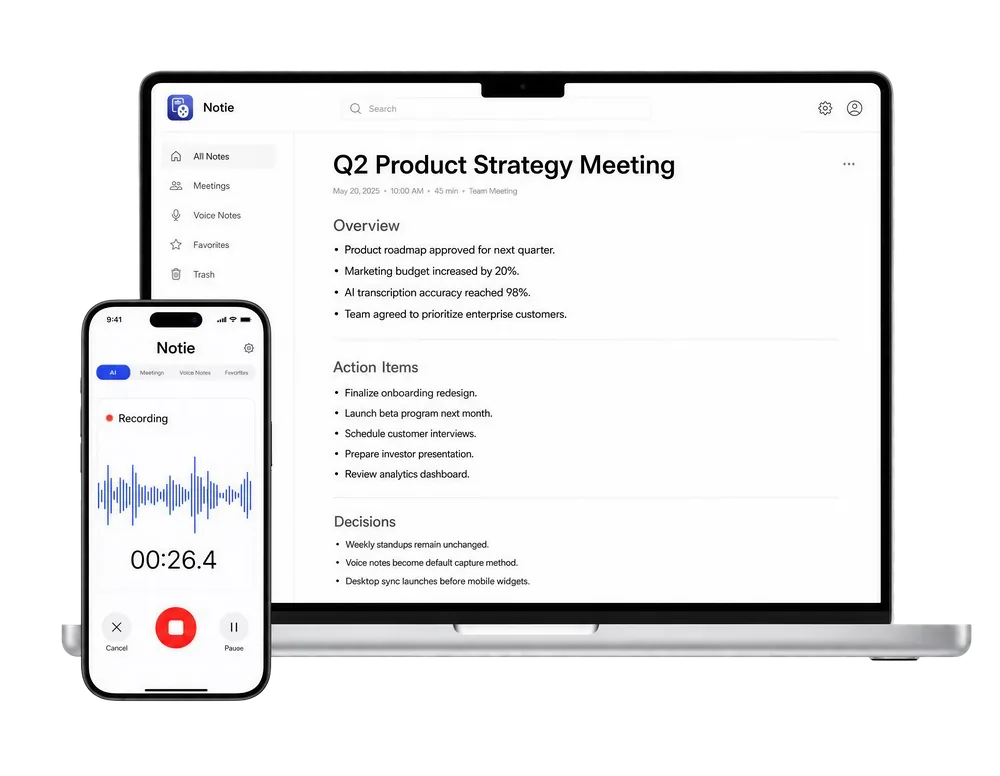
Most people download clips to remember information, not pixels. Notie transcribes any video or recording into searchable text and generates instant AI summaries, so the key moment lives in your notes forever. Download Notie free for iOS and Android.
Start for FreeMethod 3: Screen Record the Clip
For short segments you need as an actual file — and where you have the right to record — screen recording is a built-in, software-free option on every modern device.
On iPhone and Android
- iPhone: Add Screen Recording to Control Center (Settings > Control Center), swipe down, tap the record button, then play the clip full screen.
- Android: Swipe down to Quick Settings and tap Screen record, then play the segment you need.
On Mac and Windows
- Mac: Press Shift + Command + 5, choose a recording area, and capture the clip via QuickTime's built-in recorder.
- Windows: Use the Xbox Game Bar (Win + G) or the Snipping Tool's screen recording mode in Windows 11.
Screen recordings capture at your screen's resolution and include any notifications that pop up, so turn on Do Not Disturb first. If the resulting file is huge, run it through a video compressor before sharing, or convert the format with an online video converter.
Method 4: Third-Party Downloaders — Proceed with Caution
Search results are full of sites promising one-click YouTube downloads. Understand the trade-offs before using any of them: downloading videos you don't own without permission violates YouTube's Terms of Service, and many downloader sites are packed with deceptive ads, fake download buttons, and occasionally malware. If content is under Creative Commons license, is your own upload, or you have the creator's permission, downloading is generally fine — YouTube even lets creators download their own uploads from YouTube Studio in up to 1080p.
Comparing Your Options
| Method | Cost | Output | Works Offline | Best For |
|---|---|---|---|---|
| YouTube Clips feature | Free | Shareable link | No | Sharing a moment quickly |
| YouTube Premium | ~$13.99/mo | In-app download | Yes | Watching full videos offline |
| Screen recording | Free | Video file (MP4/MOV) | Yes | Short segments you may record |
| Creator download (Studio) | Free | MP4 file | Yes | Your own videos |
| Transcription tools | Free options | Text + summary | Yes | Capturing the information |
The Smarter Alternative: Save the Content, Not the File
Here's the thing about most saved clips: you never watch them again. What you actually wanted was the information inside — the quote, the steps, the argument. That's why for lectures, tutorials, interviews, and podcasts, converting the clip to text is often more useful than downloading it.
- Paste the link into a YouTube transcription tool to get the full transcript in seconds.
- Use a video summarizer to boil a long video down to key takeaways.
- Need just the audio? An MP4 to MP3 converter extracts a lightweight audio file from any video you have rights to.
Apps like Notie take this further on mobile: record or import audio and video, get an accurate transcript, then chat with the content or generate summaries — turning any clip into searchable knowledge instead of another file cluttering your camera roll.
Quick Troubleshooting
- No Clip button on a video? The creator disabled clipping, or the video type (like some live streams) doesn't support it.
- Premium download grayed out? Some videos restrict offline viewing by region or rights agreement.
- Screen recording has no sound on Mac? macOS records system audio only with an audio driver or via app-specific settings — QuickTime alone captures the mic.
- Clip link stopped working? The original video was deleted or made private; clips die with their source video.