Zoom Video Communications powers millions of meetings every day, but before you can join or host a single call, you need the app installed on your device. Whether you are setting up a new work laptop, switching to a new phone, or helping a colleague get ready for their first video call, it helps to know exactly where to download Zoom safely and how to get it running fast.
This guide covers how to download Zoom Video Communications on Windows, Mac, iOS, and Android, plus system requirements, updates, and downloading the cloud recordings you own. We will finish with a few AI tips that turn those recordings into searchable notes instead of hour-long videos nobody ever rewatches.
Zoom System Requirements in Plain English
The good news: Zoom runs comfortably on almost any device made in the last several years. You do not need a powerful machine for standard meetings, although features like virtual backgrounds and HD video benefit from a newer processor and more memory. Before downloading, make sure you have:
- A supported operating system, meaning a reasonably recent version of Windows, macOS, iOS, or Android
- A stable internet connection, ideally broadband or strong Wi-Fi
- A working microphone and speakers, built-in or external, plus a webcam if you want to be seen
- A small amount of free storage for the app itself and any local recordings you plan to keep
If your device is older or locked down by IT policies, remember that Zoom also runs in a web browser with no download at all, which is a handy fallback for one-off calls.
How to Download Zoom on Windows and Mac
The safest source for the desktop app is Zoom's official download page at zoom.us/download. Avoid third-party download portals, which sometimes host outdated installers or bundle software you never asked for.
Steps for Windows
- Open your browser and go to zoom.us/download.
- Find the desktop client for Windows and click the download button.
- Run the installer file from your downloads folder.
- Follow the on-screen prompts, then sign in to your account or continue as a guest to join meetings.
Steps for Mac
- Visit zoom.us/download in Safari or another browser.
- Download the macOS installer package.
- Open the downloaded file and complete the installation prompts.
- When macOS asks for microphone and camera permissions, approve them in System Settings so meetings work correctly.
How to Download Zoom on iPhone and Android
On mobile, always install Zoom from the official app store for your platform. The mobile app handles joining, hosting, screen sharing, and chat, which makes it a reliable backup even if you usually meet from a computer.
- Open the App Store on an iPhone or iPad, or Google Play on an Android device.
- Search for Zoom and select the official app published by Zoom.
- Tap Get or Install and wait for the download to finish.
- Open the app, then sign in or tap Join a Meeting and enter a meeting ID.
Once the app is installed, it takes only seconds to join a Zoom meeting from a link, a calendar invite, or a meeting ID.
Download Sources by Platform
Here is a quick reference for where to get Zoom on every device, including the no-download option many people forget about.
| Platform | Official download source | Good to know |
|---|---|---|
| Windows | zoom.us/download | Run the installer and approve any security prompts |
| Mac | zoom.us/download | Grant microphone and camera permissions after installing |
| iOS (iPhone and iPad) | App Store | Search for the official Zoom app |
| Android | Google Play Store | Avoid APK files from unofficial sites |
| Linux | zoom.us/download | Choose the package that matches your distribution |
| Any device | Browser, no download | Join from a meeting link using the web client |
Let Notie Handle the Meeting Notes
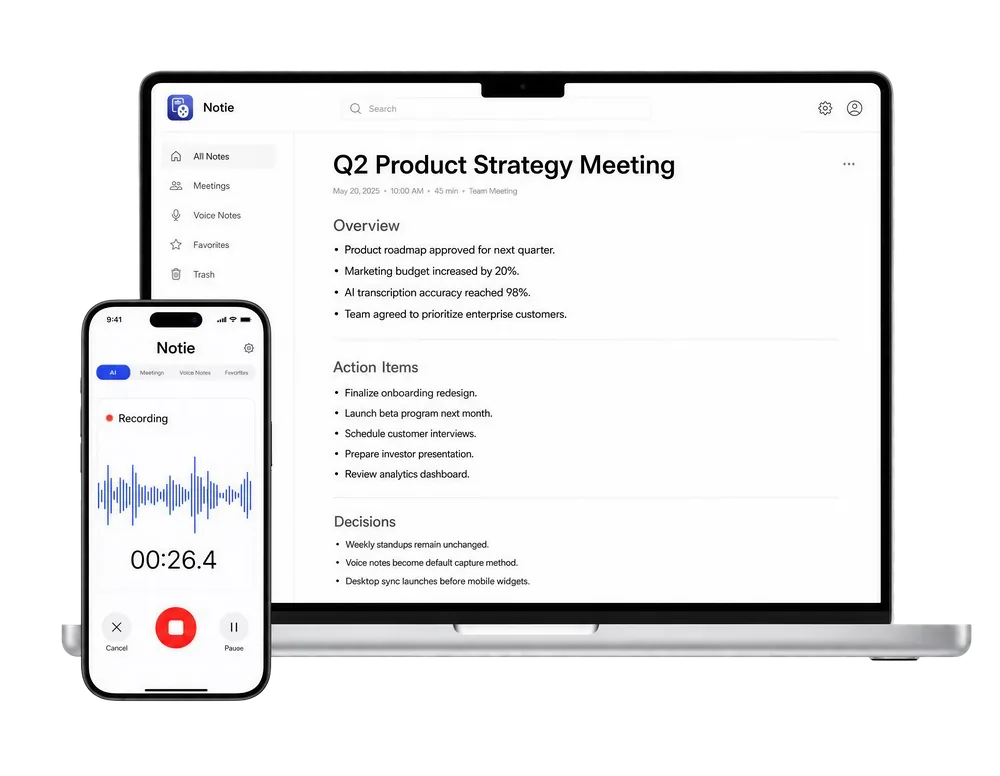
Installing Zoom gets you into the room, but keeping track of what was said is another job entirely. Notie records your meetings on your phone, transcribes them with AI, and delivers a clean summary with action items before you are back at your desk.
Start for FreeHow to Keep Zoom Updated
Zoom ships updates frequently to add features and patch security issues. On desktop, you can check for updates from the profile menu inside the app; on mobile, updates arrive through the App Store or Google Play like any other app. Staying current matters for more than new features: outdated clients can be blocked from joining some meetings, and nobody enjoys the forced update screen that appears two minutes before an important call.
How to Download Zoom Cloud Recordings You Own
If your plan includes cloud recording, Zoom stores meeting videos online, and downloading a local copy is handy for archiving, editing, or transcription. Keep in mind that you can only download recordings you own or that the host has explicitly made downloadable.
- Sign in to the Zoom web portal in your browser.
- Open the Recordings section of your account.
- Select the meeting whose recording you want to keep.
- Use the download option to save the video and audio files to your computer.
AI Tips: Turn Zoom Recordings into Useful Notes
A downloaded recording only creates value if someone actually watches it, and most never get watched. Instead, run the file through a free video to text tool to get a searchable transcript in minutes, or let a video summarizer pull out the decisions and action items so nobody has to scrub through the timeline.
Better still, skip the download-then-process routine entirely. Notie's AI meeting assistant captures the conversation live on your phone, transcribes it, and generates structured notes automatically, which turns the recording into a backup rather than another item on your to-do list.
Final Thoughts
Downloading Zoom Video Communications takes about two minutes on any platform: grab the desktop client from zoom.us/download or install the mobile app from your app store, keep it updated, and know where your recordings live. Pair it with an AI note taker like Notie, and every meeting ends with notes your whole team can actually use instead of a video file nobody opens.