Most people type at around 40 words per minute but speak at 130 or more. That gap is why voice typing is one of the easiest productivity upgrades available, and the tools are already installed on every phone and computer you own. The trick is knowing where the buttons hide and how to speak so the software keeps up.
This guide covers built-in dictation on iPhone, Android, Windows, and Mac, the voice commands that make it usable, and the point where basic dictation stops being enough and dedicated speech-to-text tools take over.
Voice to Text on iPhone and iPad
- Open any app with a text field and tap the microphone icon on the keyboard.
- Speak naturally; punctuation like "comma" and "period" is inserted when you say it, and newer iOS versions add much of it automatically.
- Tap the keyboard icon to stop. Dictation stays active while you type, so you can mix both.
- If you don't see the mic, enable it under Settings, General, Keyboard, Enable Dictation.
Voice to Text on Android
- Tap the microphone on the Gboard keyboard in any text field.
- On Pixel phones, Assistant voice typing adds automatic punctuation and voice editing commands like "clear" and "send."
- Say punctuation aloud on other devices: "question mark," "new line," "exclamation point."
- If the mic is missing, update Gboard and check Settings, System, Languages and input.
Voice to Text on Windows and Mac
- Windows: press Windows key + H to open voice typing anywhere a cursor blinks. Enable auto-punctuation in the small settings menu.
- Mac: press the dictation shortcut (often double-tap of a modifier key, configurable in System Settings, Keyboard, Dictation) and speak into any text field.
- Google Docs: use Tools, Voice typing in Chrome for long documents with strong accuracy.
- Web tools: a browser-based voice-to-text tool works on any device without setup.
Dictation types for you — Notie listens for you
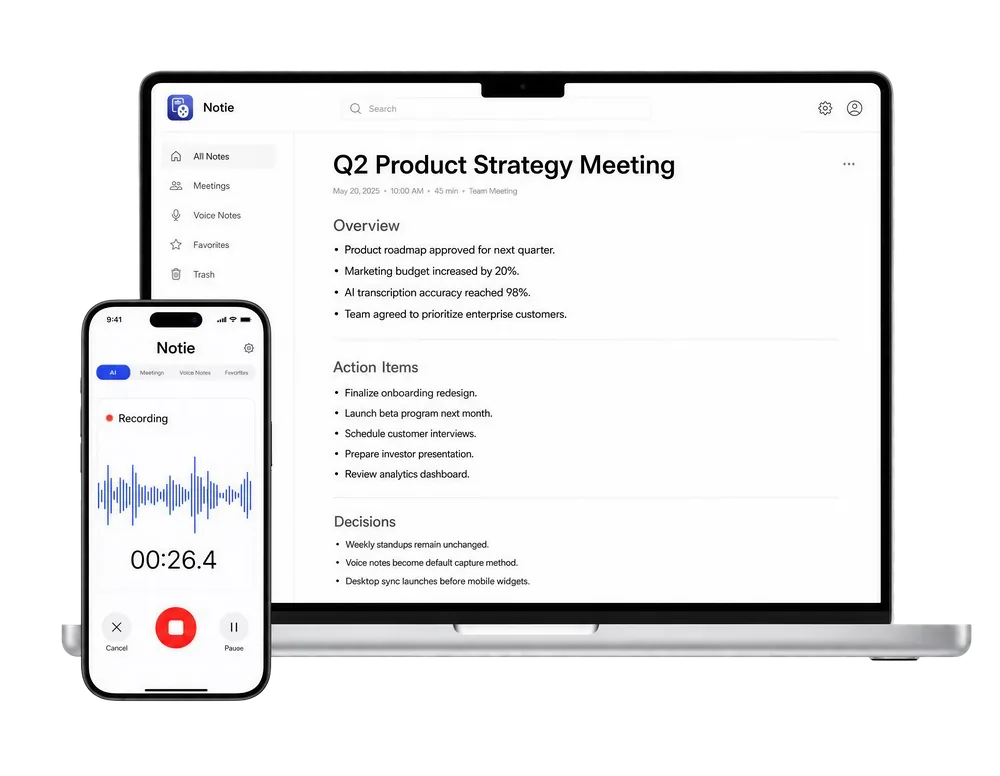
Keyboard dictation is great for a text message, but it can't capture a meeting, lecture, or interview. Notie records long-form audio, transcribes it in 100+ languages, and summarizes the key points with AI — even translating between languages live. Download Notie free on iOS and Android.
Start for FreeDictation vs Transcription: Know the Difference
Built-in dictation is designed for short bursts while you watch the screen, and it usually times out after a stretch of silence. Transcription tools are designed for long recordings you convert afterward or in real time: meetings, lectures, voice memos, phone calls. If you have ever tried to dictate a one-hour meeting through your keyboard mic, you know the difference. For long-form audio, use an audio to text converter or an app with live transcription built in.
7 Tips for Dramatically Better Accuracy
- Speak in complete phrases rather than word... by... word; context improves recognition.
- Keep the mic 6 to 12 inches away and reduce background noise.
- Say punctuation explicitly until you confirm your device auto-punctuates.
- Add unusual names and jargon to your contacts or dictionary so the model learns them.
- Don't stop to fix errors mid-flow; dictate first, edit after.
- Use a wired or quality Bluetooth mic for noisy environments.
- For anything longer than a paragraph, switch to a dedicated transcription app like Notie.
Which Method Should You Use?
| Situation | Best option |
|---|---|
| Text messages and quick emails | Built-in keyboard dictation |
| Long documents at a desk | Google Docs voice typing or Windows + H |
| Meetings, lectures, interviews | Notie with AI transcription and summaries |
| Existing audio files | Audio to text converter |
| Multilingual conversations | Notie live translation |
Voice to text is a skill stack: keyboard dictation for messages, document voice typing for drafts, and AI transcription for everything long-form. Start with the mic on your keyboard today, and when your needs outgrow it, Notie is ready for the heavy lifting.