Most "video editing" is really one job: cut the fumbling start, cut the dead air at the end, maybe carve out the useful middle. You don't need a professional suite for that — you need a trimmer that opens fast, cuts precisely, and exports without wrecking quality or stamping a watermark on your work.
The surprise is that the best trimmer is usually one you already have. Here is the honest rundown: built-in tools first, browser tools for when you can't install anything, and the step up for when trimming becomes real editing.
Built-In Trimmers You Already Own
- iPhone/iPad Photos: open a video, tap Edit, drag the yellow handles. Choose "Save Video as New Clip" to keep the original. Handles 4K effortlessly.
- Android Google Photos: same idea — Edit, drag the trim handles, Save copy.
- Windows Photos / Clipchamp: right-click a video, Open With Photos, and use Trim; Clipchamp adds multi-clip editing free.
- Mac QuickTime: Cmd+T opens Trim on any video; for frame-precision, iMovie is free.
- YouTube Studio: trim already-uploaded videos without re-uploading.
For a single cut on a file you own, these beat every download and every website — no upload wait, no privacy question, no watermark.
Best Online Video Trimmers (No Install)
Browser trimmers shine on locked-down work machines and Chromebooks. Reputable options include Clideo, VEED, Kapwing, and Canva's video editor — all handle basic trims free, with the usual free-tier catches: file size caps, upload time on big videos, and watermarks on some exports. Check the export settings before you spend time editing. If your file arrives in an awkward format first, an online video converter or MOV to MP4 converter gets it trim-ready in one step.
When Trimming Becomes Editing
| Your job | Best tool | Cost |
|---|---|---|
| Cut both ends off a clip | Built-in phone/desktop trimmer | Free |
| Trim without installing anything | Browser tool (Clideo, VEED, Kapwing) | Free tier |
| Trim spoken content by editing text | Descript | Free tier, paid plans |
| Multi-clip edits with music and titles | CapCut, iMovie, Clipchamp | Free |
| Frame-accurate professional work | DaVinci Resolve, Premiere | Free / subscription |
One standout for talking-head content: text-based editors let you trim by deleting words from a transcript — cutting rambles out of a podcast this way is dramatically faster than scrubbing a timeline. Our Descript review digs into that workflow.
Trim the video, keep the knowledge
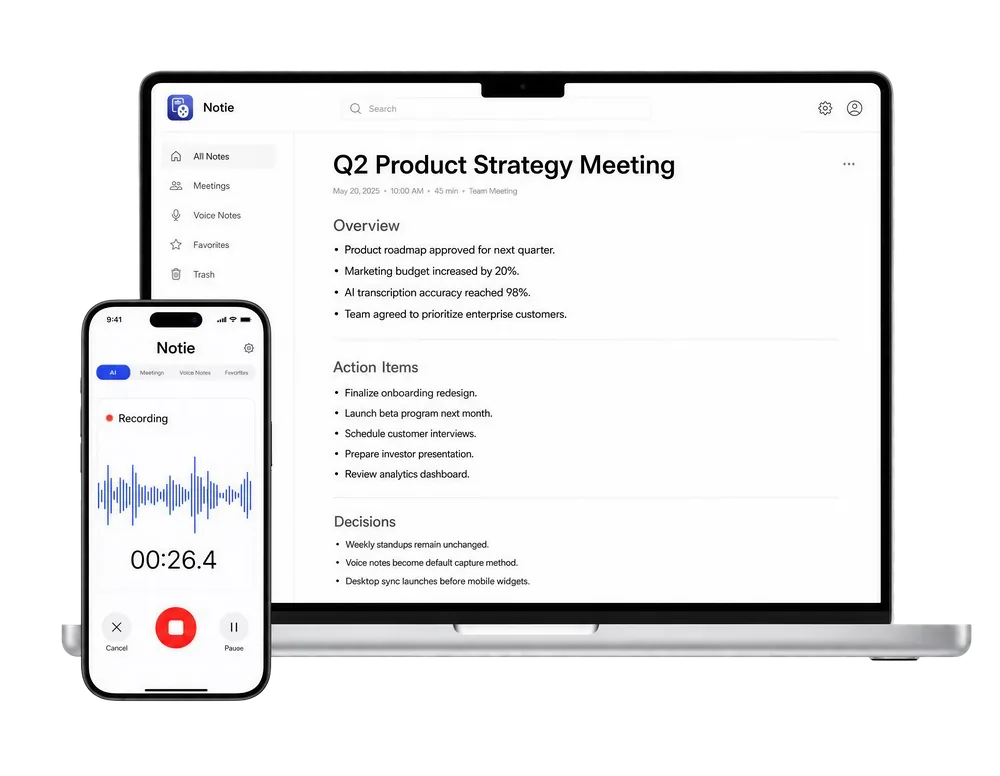
Before you cut that meeting recording down, save the words: Notie transcribes recordings in 100+ languages and generates AI summaries with the key points — so you can trim aggressively knowing nothing said is lost. Try Notie free on iOS and Android.
Start for FreeTrimming Tips That Preserve Quality
- Trim before compressing, never after — every re-encode costs quality, so cut first, then shrink with a video compressor if needed.
- Keep the original until you're sure; use "save as new clip" options.
- Cut on silence or scene changes so trims feel invisible.
- For social posts, trim to the platform's sweet spot and front-load the hook in the first two seconds.
- If you only need the audio, skip video export entirely — an MP4 to MP3 converter is faster and smaller.
The Verdict
For pure trimming, the best video trimmer is the one with zero friction: Photos on your phone, QuickTime or Photos on desktop. Go browser-based when you can't install, text-based when you're editing speech, and pro-grade only when the project truly demands it. Everything else is marketing.