Video calls invite everyone into your home whether you like it or not. Microsoft Teams' background effects fix that in two clicks: blur what's behind you, swap in a tidy virtual office, or upload a branded backdrop for client calls. The feature works before you join and mid-meeting, on both desktop and mobile.
Here is exactly where the settings live, how to add custom images, why the option sometimes vanishes, and a few rules of thumb for backgrounds that look professional instead of distracting.
Set a Background Before Joining a Meeting
- Join the meeting from your calendar or link — you will land on the pre-join screen.
- Make sure your camera is on, then click Effects and avatars (or the background filters icon).
- Choose Blur, pick one of the built-in scenes, or select an image you have added.
- Confirm the preview looks right, then click Join now.
Change Your Background During a Meeting
- Click the More (three dots) button in the meeting toolbar.
- Select Effects and avatars, then Backgrounds on newer versions (older builds say Apply background effects).
- Pick blur or an image, then click Apply. Use Preview first if you don't want others to see the switch happen.
- On mobile, tap the three dots, then Background effects, and choose blur or an image.
Upload a Custom Teams Background
In the Backgrounds panel, click Add new and select an image from your computer. For best results use a 16:9 image at 1920x1080 — smaller or oddly cropped images get stretched. Teams mirrors your camera preview to you, but any text in your background appears correctly to other participants on current versions; still, run a quick test call before using a text-heavy branded backdrop with a client.
Why Can't I See Background Effects?
- Hardware limits: background effects need a processor with AVX2 support; very old machines don't qualify.
- Browser meetings: support in Teams on the web is limited compared to the desktop app.
- Admin policy: some organizations disable custom backgrounds — only blur and stock scenes appear.
- Camera off: the option only activates when your video is on.
- Outdated app: update Teams, and if menus look wrong, try clearing the Teams cache.
Look sharp on camera, stay sharp on the follow-up
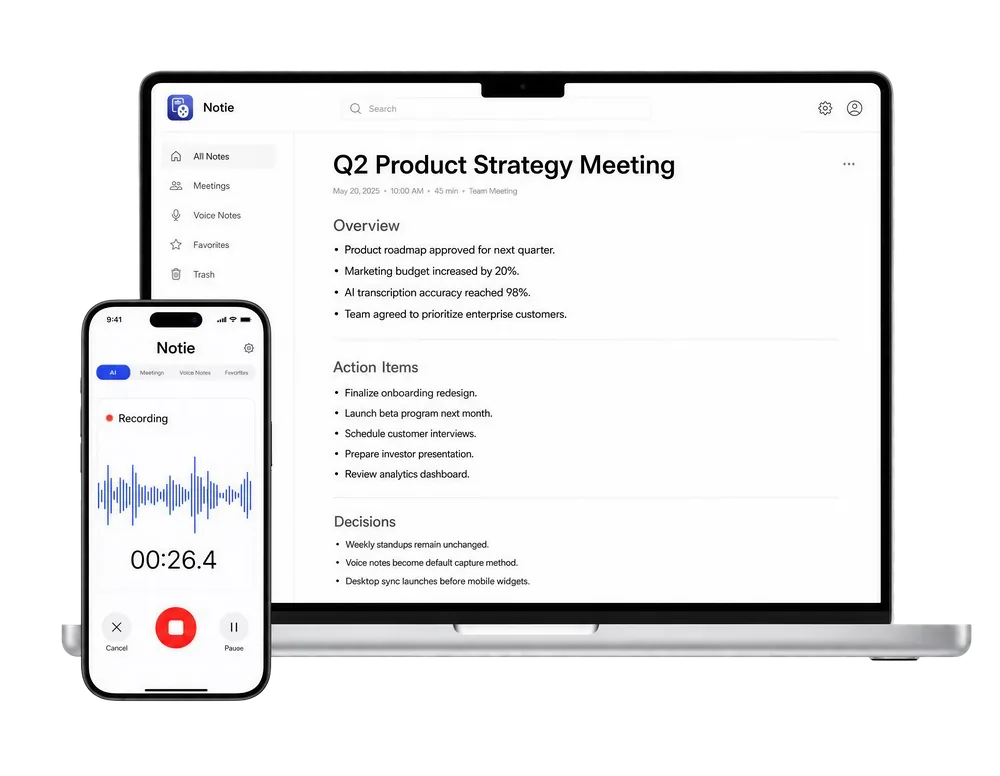
A clean background makes a good impression — remembering every decision makes a better one. Notie records and transcribes your meetings in 100+ languages, then delivers AI summaries with action items to your phone. Join polished, leave prepared. Try Notie free.
Start for FreeWhat Makes a Good Video Call Background?
| Choice | Best for | Watch out for |
|---|---|---|
| Blur | Everyday internal calls | Halo effect around hair with busy rooms |
| Neutral office scene | Client calls and interviews | Overused stock scenes can feel generic |
| Branded image | Sales demos and webinars | Keep logos small; test readability first |
| Real tidy background | Building trust on camera | Requires actual tidying |
Beyond Backgrounds: Run Better Teams Meetings
Presentation is half the battle; retention is the other half. Pair your polished setup with an AI meeting assistant so decisions and action items are captured while you focus on the conversation. Notie's AI summaries turn an hour of discussion into a scannable brief, and recordings can be converted later with an audio to text converter when you need the full record. Camera-ready and memory-proof beats camera-ready alone.
That's the whole trick: Effects and avatars before or during the call, a 1920x1080 image for custom uploads, and an update or cache clear when the option goes missing.