An ICS file is the universal format for calendar data. When a webinar confirmation, flight booking, conference agenda, or class schedule arrives with a .ics attachment, that file contains every event detail — title, time, location, description — ready to drop into any calendar app. Google Calendar accepts them happily, but the import button is buried where few people look.
Here is the fastest way to import an ICS file on desktop, the workaround for phones (Google still doesn't support direct mobile import), and how to subscribe to a live calendar feed so recurring schedules update themselves.
Import an ICS File on Desktop (the Reliable Way)
- Download the .ics file to your computer.
- Open calendar.google.com in a browser and click the gear icon, then Settings.
- In the left sidebar, click Import & export.
- Click Select file from your computer and choose the .ics file.
- Pick which calendar the events should land in from the dropdown.
- Click Import. A confirmation shows how many events were added.
Events appear immediately and sync to every device where your Google account is signed in, including your phone. That sync is the key to the mobile workaround below.
How to Add an ICS File From Your Phone
The Google Calendar mobile app has no import option, but you have two solid paths. Option 1: open the .ics attachment on your phone; on iPhone, the built-in Calendar app offers to add the events, and on Android, some mail apps hand it to your default calendar. Option 2 (recommended for Google Calendar users): request the desktop site. Open calendar.google.com in your mobile browser, enable Desktop site in the browser menu, then follow the desktop steps above. Once imported, events sync back to the app within seconds.
Import vs Subscribe: Pick the Right One
| Method | Best for | Updates automatically? |
|---|---|---|
| Import .ics file | One-time events: webinars, flights, invites | No — it is a snapshot |
| Subscribe via URL | Recurring feeds: team calendars, schedules, holidays | Yes — refreshes periodically |
If someone sent you a link ending in .ics rather than a file, subscribe instead of importing: in Google Calendar settings, choose Add calendar, From URL, and paste the link. Subscribed calendars refresh on Google's schedule, so changes at the source appear without re-importing.
The event is on your calendar — now capture what happens in it
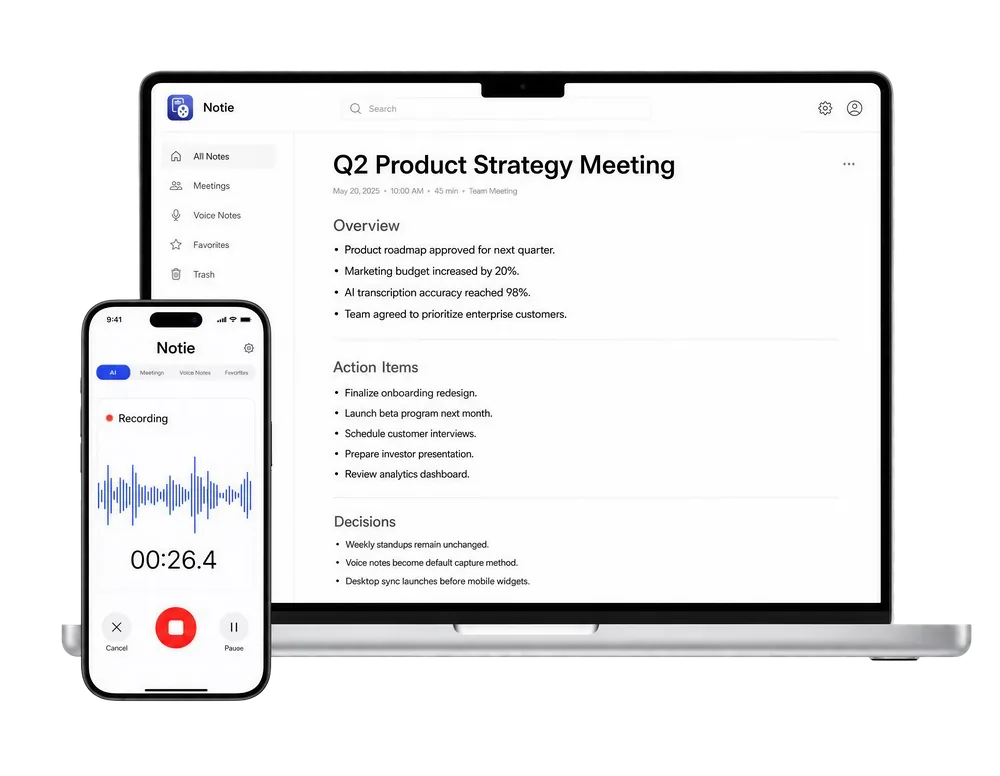
Importing the invite is the easy part. Notie handles the meeting itself: it records, transcribes in 100+ languages, and delivers AI summaries with action items so you leave every event with perfect notes. Download Notie free on iOS and Android.
Start for FreeFixing Common ICS Import Errors
- "Could not upload your events": the file may be malformed. Open it in a text editor and confirm it starts with BEGIN:VCALENDAR and ends with END:VCALENDAR.
- Wrong times: timezone data in the file may conflict with your calendar's timezone setting. Check both before assuming the import failed.
- Duplicate events: importing the same file twice duplicates everything. Delete duplicates manually or import into a separate calendar you can remove in one click.
- Huge files: very large ICS files can time out. Split them or import in batches.
- Read-only feeds: subscribed calendars cannot be edited; import a static copy if you need to modify events.
Pro Tip: Import Into a Separate Calendar First
Before importing a big unfamiliar file, create a new calendar (under Add calendar, Create new calendar) and import there. If anything looks wrong, deleting that calendar removes every imported event instantly — far easier than hunting duplicates one by one. Once your schedule is in shape, make the meetings themselves count: an AI meeting assistant captures the conversation, and an AI summarizer can condense long agendas or follow-up docs. If a session was recorded, a video summarizer saves you the rewatch.
That is all there is to it: Settings, Import & export, select file, import. One minute of setup, and every event syncs everywhere your Google account lives.