Few tech surprises are as jarring as your phone suddenly narrating everything you touch — usually after a triple-click you didn't notice, a curious toddler, or a well-meaning settings experiment. Text-to-speech features are essential accessibility tools for millions, but when they turn on by accident, they can make a device nearly unusable, because screen readers change how tapping and swiping work.
The confusion comes from the fact that "text to speech" isn't one feature. It's a family: full screen readers (VoiceOver, TalkBack, Narrator), selection-based speech (Speak Selection, Select to Speak), autoplay narration in apps, and keyboard dictation cousins. Turning off the right one requires knowing which one you triggered.
This guide covers every major platform — iPhone, Android, Windows, Mac, Kindle, and TVs — including the crucial trick for navigating your device while a screen reader is active.
First: Which Text-to-Speech Feature Is Talking?
- Everything speaks and taps act weird: A full screen reader (VoiceOver on Apple, TalkBack on Android, Narrator on Windows) is on.
- It only reads text you select or a button you tap: Selection-based speech (Speak Selection / Select to Speak).
- Web articles or books read themselves aloud: An in-app read-aloud feature (browser Reader mode, Kindle, news apps).
- A voice narrates menus on your TV: The TV's audio guide or voice guide accessibility setting.
Turn Off Text to Speech on iPhone and iPad
Disable VoiceOver (the Full Screen Reader)
Critical navigation note: while VoiceOver is on, tap once to select, double-tap to activate, and swipe with three fingers to scroll. Now, the fastest ways to turn it off:
- Ask Siri. Say "Hey Siri, turn off VoiceOver." This is by far the easiest route.
- Triple-click the side button (or Home button on older models) — if VoiceOver is set as your Accessibility Shortcut, this toggles it instantly.
- Through Settings: Go to Settings > Accessibility > VoiceOver (remember: tap to select, double-tap to open) and toggle it off.
Disable Speak Selection and Speak Screen
If your iPhone only reads text when you select it (a Speak button appears in the copy menu) or when you swipe down with two fingers, go to Settings > Accessibility > Spoken Content and turn off Speak Selection and Speak Screen. The two-finger-swipe gesture triggering accidentally is one of the most common "my phone keeps reading to me" causes.
Turn Off Text to Speech on Android
Disable TalkBack
- Volume key shortcut: Press and hold both volume keys for 3 seconds — on most Android phones this toggles TalkBack.
- Voice command: Say "Hey Google, turn off TalkBack."
- Settings route: Open Settings > Accessibility > TalkBack and switch it off (with TalkBack active, tap once to select, double-tap to activate).
Disable Select to Speak and Speech Output
Select to Speak lives at Settings > Accessibility > Select to Speak — turn it off to remove the floating read-aloud button. Menu names vary slightly across Samsung, Pixel, and other brands, but everything lives under Accessibility. Google Assistant's spoken responses can be reduced under Assistant settings > Spoken results if the phone talks back more than you'd like.
Prefer Turning Speech into Text Instead?
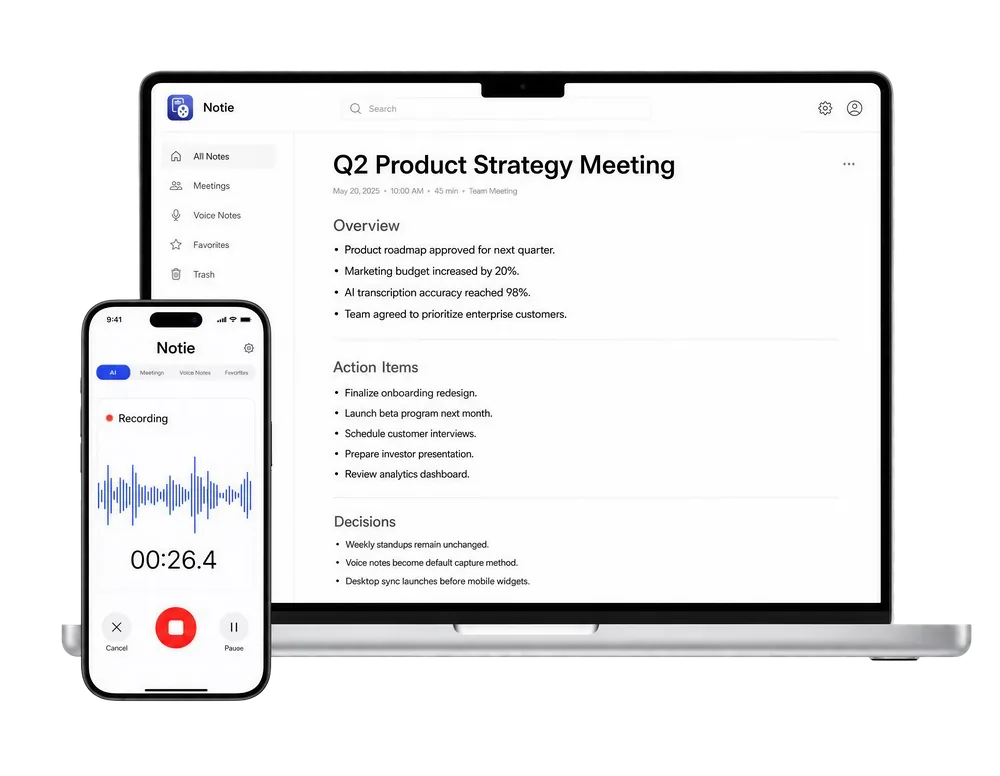
Text to speech reads to you — Notie does the reverse, turning meetings, lectures, and voice notes into accurate transcripts and AI summaries. If your notes should be readable instead of audible, Notie is free to try on iOS and Android.
Start for FreeTurn Off Text to Speech on Windows
- Narrator: Press Ctrl + Windows key + Enter to toggle Narrator off instantly. To prevent accidental relaunches, go to Settings > Accessibility > Narrator and disable the keyboard shortcut.
- Read Aloud in Edge and Office: These per-app features (Ctrl+Shift+U in Edge) stop when you close the reading toolbar — they're not system settings.
- Third-party screen readers: If NVDA or JAWS is installed, quit it from its own menu (NVDA: Insert+Q).
Turn Off Text to Speech on Mac
- VoiceOver: Press Command + F5 to toggle it off (on Touch ID Macs, hold Command and triple-press Touch ID). Or ask Siri to "turn off VoiceOver."
- Spoken announcements and selection speech: Go to System Settings > Accessibility > Spoken Content and disable "Speak selection" and "Speak announcements."
- Speak on key press: Under Accessibility > Keyboard settings if your Mac echoes typing.
Kindles, TVs, and Streaming Devices
| Device | Feature Name | How to Turn Off |
|---|---|---|
| Amazon Fire TV | VoiceView | Hold Back + Menu for 2 seconds, or Settings > Accessibility |
| Roku | Audio Guide | Press * (star) four times quickly, or Settings > Accessibility |
| Apple TV | VoiceOver | Ask Siri, or Settings > Accessibility > VoiceOver |
| Samsung TV | Voice Guide | Hold volume button, or Settings > General > Accessibility |
| Kindle e-reader | VoiceView | Settings > Accessibility > VoiceView Screen Reader |
| Android TV / Google TV | TalkBack | Hold both back and down buttons, or Settings > Accessibility |
TV narration ("audio guide" or "voice guide") is the most common accidental activation in living rooms — usually from sitting on the remote. Every platform hides the fix under Accessibility, and most have a remote shortcut listed above.
Stop Accidental Reactivation
- Audit your accessibility shortcut. On iPhone: Settings > Accessibility > Accessibility Shortcut — remove VoiceOver if you never use it, so triple-click can't surprise you.
- On Android, check Settings > Accessibility > shortcuts and disable the volume-key shortcut if it keeps misfiring in your pocket.
- On Windows, disable the Narrator launch shortcut in Narrator settings.
- Leave features accessible for those who need them. If you share a device with someone who relies on a screen reader, learn the toggle instead of disabling shortcuts entirely.
Text to Speech vs. Speech to Text: Using Voice on Your Terms
Turning off text to speech doesn't mean giving up on voice features — it means choosing when they serve you. On-demand text-to-speech tools are great for listening to an article while commuting, without a system-wide setting narrating your lock screen. And the reverse direction is often more useful day to day: a speech to text tool converts your spoken words into writing, and apps like Notie use AI transcription to turn meetings and voice memos into organized, summarized notes. Silence the narration you didn't ask for; keep the voice tools you did.