Google has been rolling Gemini into nearly everything it makes — your phone's assistant gesture, Gmail, Docs, Chrome, even the power button on some Android devices. That is convenient if you asked for it, and irritating if you did not. Plenty of people would rather their long-press launched the old Assistant, or simply want fewer AI features watching over their shoulder.
This guide covers how to disable Gemini on Android, iPhone, and the web, plus how to manage what Gemini remembers about you. One honest caveat up front: Google reorganizes these menus regularly, and options differ by device, region, and account type — so treat the steps below as a reliable map rather than pixel-perfect directions.
Why people turn Gemini off
Before the how, the why — because your reason shapes how far you need to go. The common ones:
- Privacy — Gemini conversations can be reviewed to improve Google's services, and many users prefer not to feed an AI their email and documents.
- Button remapping — long-pressing the power button or home gesture now summons Gemini on many phones, often by accident.
- Preference for Google Assistant — Assistant still handles some quick device commands more predictably.
- Simplicity — some people just want fewer AI suggestions layered over Gmail, Docs, and search.
How to disable Gemini on Android
Android gives you three separate levers: the assistant gesture, the app itself, and Gemini's features inside individual Google apps. Depending on how thoroughly you want it gone, you may need all three.
Switch your default assistant
If your phone still offers classic Google Assistant, the fastest fix is switching back:
- Open Settings and search for Digital assistant (on some phones: Apps > Default apps > Digital assistant app).
- Select the default assistant option and choose Google Assistant — or None if you want no assistant triggered by gestures at all.
- Test your long-press or corner-swipe gesture to confirm Gemini no longer launches.
On newer devices, Google has removed the Assistant fallback entirely; in that case, choosing None is the remaining option.
Disable or uninstall the Gemini app
- Long-press the Gemini app icon and tap App info, or find Gemini under Settings > Apps.
- Tap Disable (if it came preinstalled) or Uninstall (if you added it from the Play Store).
- If Gemini lives inside the Google app on your phone rather than as a standalone app, open the Google app's settings and look for the toggle that switches between Gemini and Assistant.
Turn off Gemini in Gmail, Docs, and other Google apps
The sparkle icons inside Gmail and Docs are controlled separately from the assistant. On personal accounts, look in each app's settings for "smart features" and Gemini-related options. On work or school accounts, Gemini in Workspace apps is controlled by your administrator, so you may need to ask IT to turn it off organization-wide.
Manage or delete Gemini Apps Activity
Even with the app disabled, your past conversations may still live in your Google account. To manage them:
- Visit your Google account's activity controls at myactivity.google.com while signed in.
- Find Gemini Apps Activity.
- Turn it off, and delete existing activity if you want past conversations removed. Google notes that some data may be retained briefly for safety and service purposes.
Want AI that stays in its lane? Try Notie
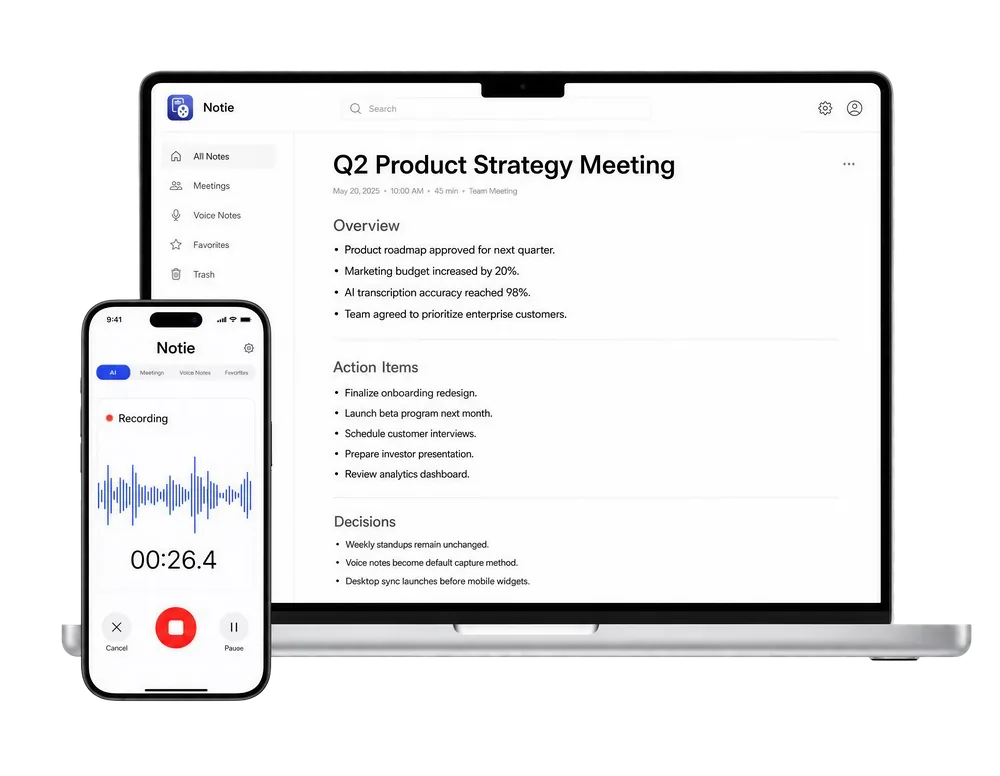
Turning off Gemini does not have to mean giving up AI — it means choosing when it runs. Notie only listens when you hit record, then transcribes and summarizes your meetings with private summaries you control. AI on your schedule, not your operating system's.
Start for FreeHow to turn off Gemini on iPhone
On iOS, Gemini is just an app, which makes this refreshingly simple:
- Long-press the Gemini app icon and choose Remove App > Delete App.
- If you use the Google app, check its settings for any Gemini or AI toggles and switch them off.
- Review your Siri settings if you had connected any Gemini shortcuts.
Because Apple controls iOS defaults, Gemini can never take over your side button the way it can on Android — Siri keeps that job unless you deliberately wire in a shortcut. Deleting the app is genuinely the end of it.
How to turn off Gemini in your browser
You cannot fully remove Gemini from Google's ecosystem on the web, but you can contain it. Skip gemini.google.com, sign out of it, and turn off Gemini Apps Activity as described above. In Chrome, check Settings for AI features and disable the ones you do not want. AI Overviews in Google Search cannot currently be switched off permanently, though the "Web" results filter shows plain links without them.
What turning Gemini off actually does
| Where you disable it | What actually happens |
|---|---|
| Android default assistant | Gestures and buttons stop launching Gemini; the app itself may remain installed |
| Gemini app (disable or uninstall) | Removes the chat interface; does not affect Gemini features inside Gmail or Docs |
| Google app settings (Gmail, Docs, etc.) | Removes AI writing and summary features from those specific apps |
| Gemini Apps Activity | Stops chats being saved to your account and used to improve services; does not remove the app |
| iPhone | Deleting the app removes Gemini from the device entirely |
Alternatives if you still want AI — on your terms
Most people disabling Gemini are not anti-AI; they are anti-ambush. If you want a chatbot you open deliberately instead of one wired into your power button, a browser-based AI chat works on any device with nothing installed. Our comparison of the best AI chat apps covers other options worth a look.
And for the tasks voice assistants handle worst — recording, transcribing, and summarizing real conversations — Notie is built around consent and control: it records only when you tap the button and keeps your notes organized with private summaries. Still weighing Google's two assistants against each other? See our breakdown of Gemini vs. Google Assistant.