Voicemail is one of those things you configure once and forget — until you switch carriers or phones and discover callers are hitting a robotic "this mailbox has not been set up." The setup takes about two minutes, and it is worth doing properly because modern iPhones turn voicemail into something genuinely useful: visual lists you can tap through and automatic transcriptions you can read in a meeting instead of listening.
Here is the complete setup, how to access voicemail every way iPhone allows, and the troubleshooting list for when the Voicemail tab just spins.
Set Up Voicemail on iPhone: Step by Step
- Open the Phone app and tap the Voicemail tab in the bottom-right corner.
- Tap Set Up Now.
- Create a voicemail password (your carrier may ask for it if you ever call in remotely).
- Choose a greeting: Default (a generic announcement) or Custom to record your own.
- For a custom greeting, tap Record, speak, then Play to review and Save.
- Done — new messages now appear as a tappable list in the Voicemail tab.
If you see Call Voicemail instead of a list, your carrier or plan doesn't include Visual Voicemail; messages are retrieved by calling in, typically by holding the 1 key.
How to Access iPhone Voicemail (All 4 Ways)
- Voicemail tab: Phone app, Voicemail — tap any message to play, read the transcription, or share the audio.
- Hold the 1 key on the keypad to dial your carrier's voicemail line the traditional way.
- From another phone: call your own number, interrupt the greeting (usually with * or #), and enter your voicemail password.
- Live Voicemail: on recent iOS versions, you can watch a live transcription while someone leaves a message — and pick up mid-message if it's important.
Voicemail Transcription: Read Instead of Listen
On supported carriers, iOS transcribes voicemails automatically — open a message and the text appears above the play button. It is a small taste of a much bigger workflow: audio you can read is audio you can skim, search, and forward. The same principle powers speech-to-text tools and full audio to text conversion for recordings far longer than a voicemail.
Love readable voicemail? You'll love readable everything
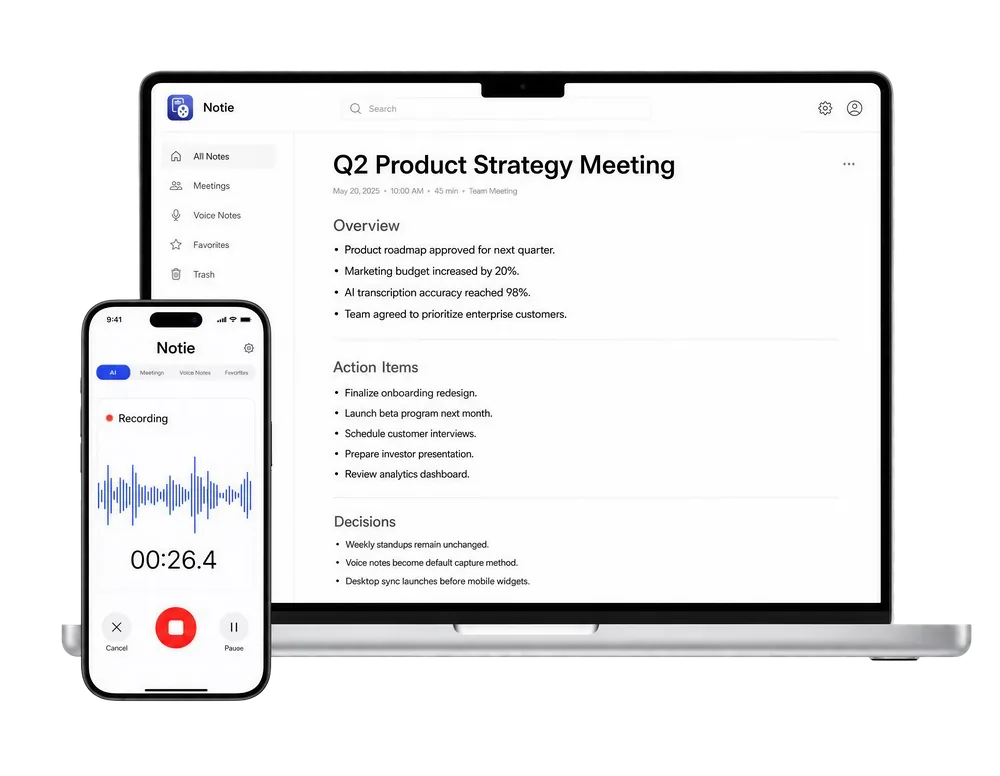
If voicemail transcription saves you 30 seconds, imagine it for hour-long meetings and lectures. Notie records, transcribes in 100+ languages, and delivers AI summaries with action items — like Visual Voicemail for your entire spoken life. Try Notie free on iOS and Android.
Start for FreeRecord a Greeting People Don't Hang Up On
- Keep it under 15 seconds — name, can't answer, leave a message. Done.
- Record somewhere quiet; echo and background noise read as unprofessional.
- Ask for what you need: "name, number, and a brief reason for the call."
- For business lines, mention a faster channel: "For quicker help, text this number or email us."
Voicemail Not Working? Run This Checklist
- Restart the iPhone — the classic fix for a spinning Voicemail tab.
- Check cellular service: voicemail setup needs a carrier connection, not just Wi-Fi.
- Update carrier settings: Settings, General, About — a prompt appears if an update is waiting.
- Confirm voicemail is included in your plan (some prepaid plans exclude Visual Voicemail).
- Reset the voicemail password via your carrier's app or support line if it stopped accepting it.
- Still stuck? Toggle Airplane Mode for 30 seconds, and as a last resort contact the carrier — voicemail is ultimately their system, not Apple's.
Two minutes of setup, one decent greeting, and voicemail quietly becomes useful again. And when a message contains something you need to keep — an address, a quote, a callback number — the audio-to-text habit extends far beyond voicemail: an audio to text converter handles any recording, and a voice-to-text tool captures your own replies faster than typing.